# Add Purchase
**Step 1: Understand Purchase Invoice**
--------------------------------------------------------------------------
- A **purchase invoice** is automatically created for every purchase entry in the system.
**Step 2: Print a Purchase Invoice**
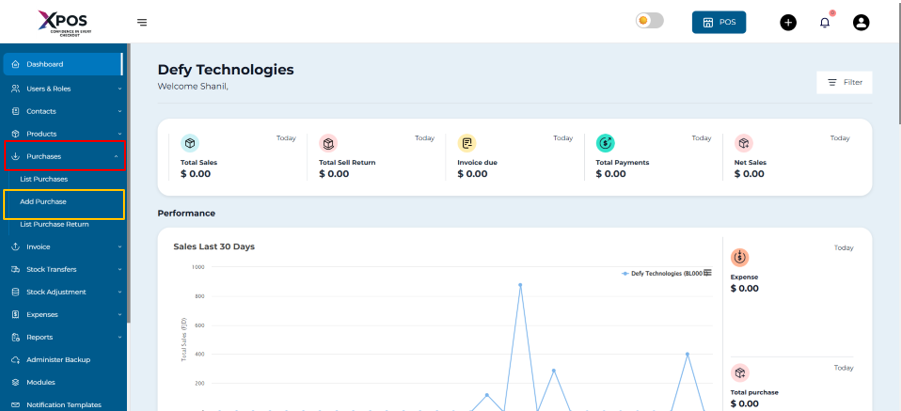
1. Go to **Purchases → Add Purchases.**
[](https://learn.defy.com.fj/uploads/images/gallery/2026-02/bQZ6A7gxnF8gS6C2-screenshot-2026-02-10-134632.png)
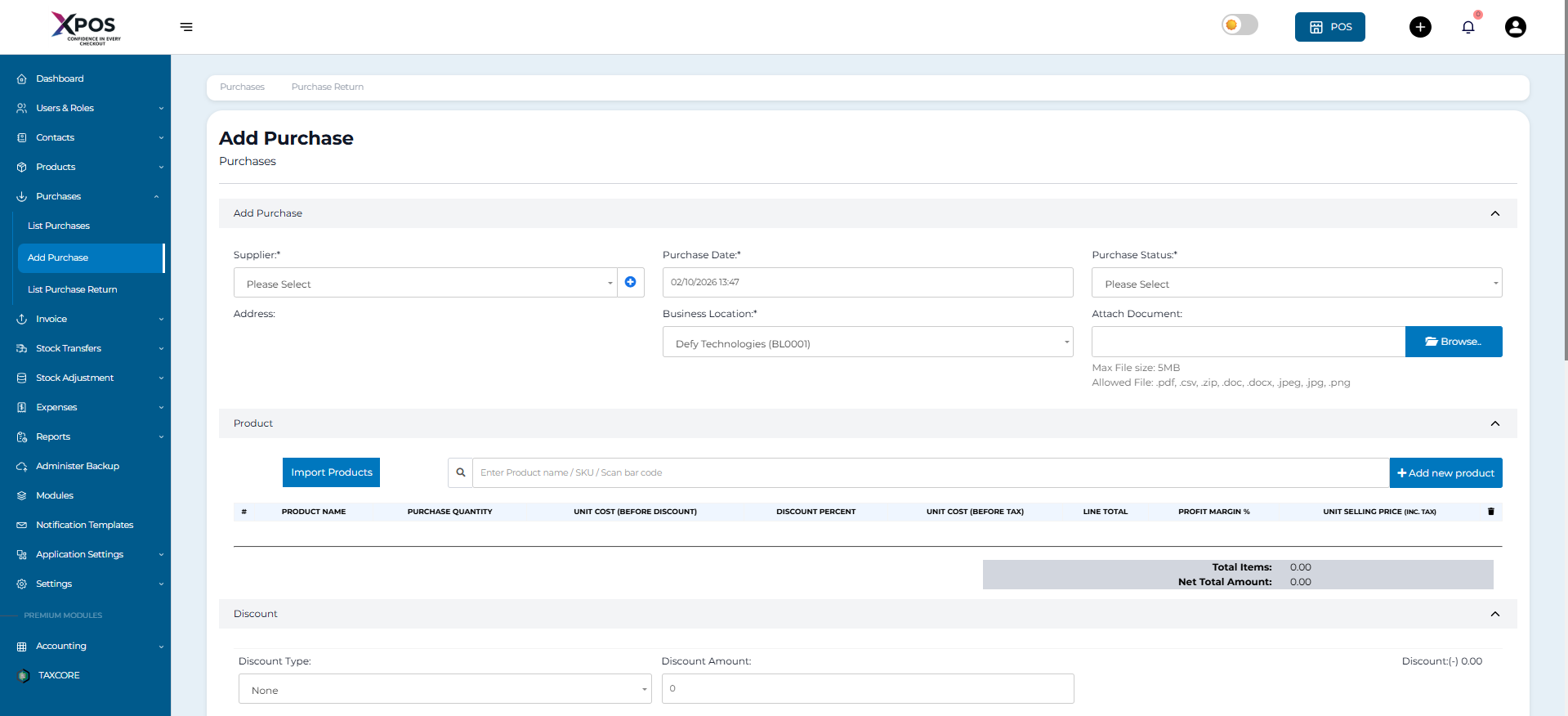
2.Locate the required purchase entry.
[](https://learn.defy.com.fj/uploads/images/gallery/2026-02/UCWdt8BBpHZ6C7Wj-screenshot-2026-02-10-134753.png)
[](https://learn.defy.com.fj/uploads/images/gallery/2026-02/Q1E3UI2Sy7SHFTDW-screenshot-2026-02-10-134817.png)
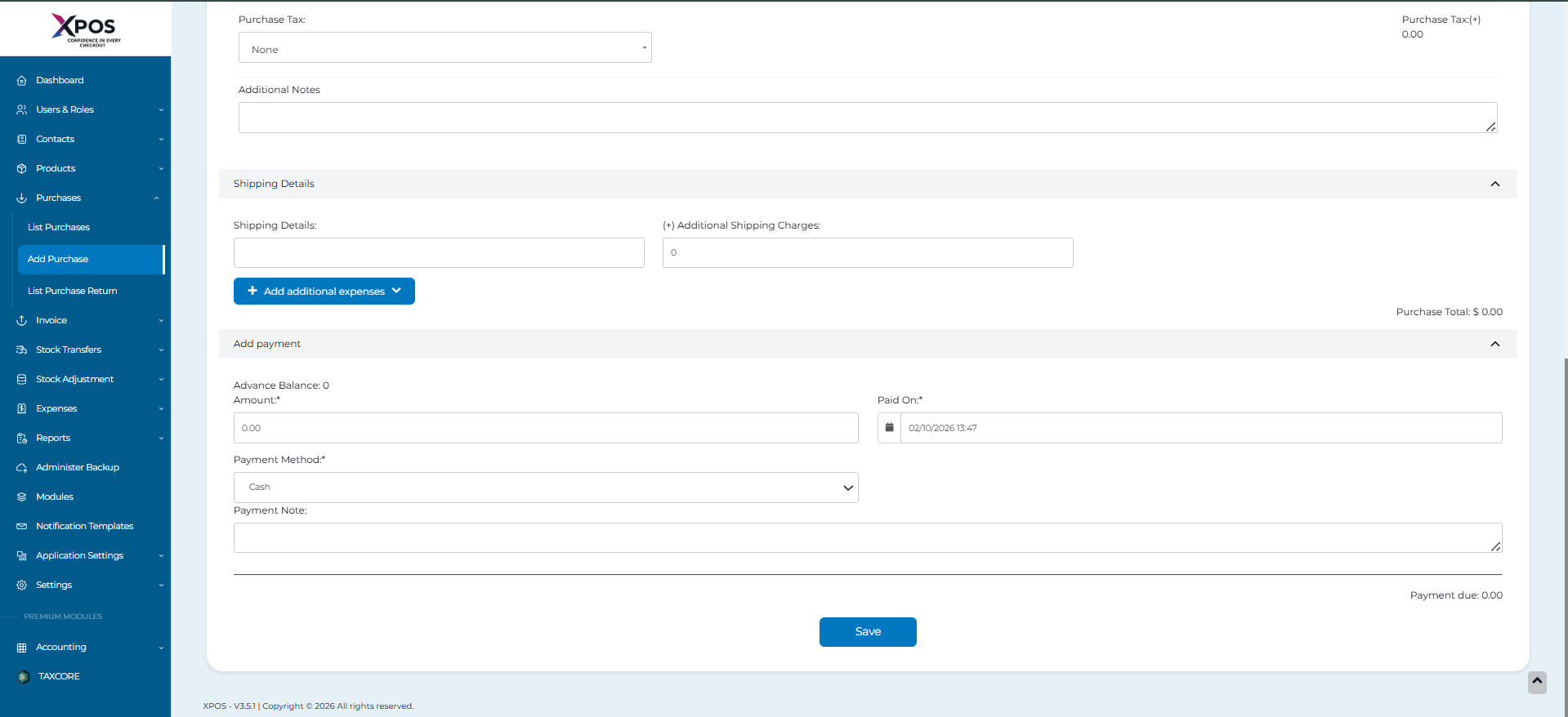
3. Click **Save.**
4. Select **Print** to generate the purchase invoice.
**Step 3: Barcode on Purchase Invoice**- A **barcode is automatically generated** on the purchase invoice.
- The barcode is based on the **Purchase Invoice Number**.