# Expenses Category
**How to Manage Expense Categories**
---------------------------------------------------------------------
Expense categories help you organize and track different types of expenses efficiently.
**Steps to View and Manage Expense Categories**
--------------------------------------------------------------------------------
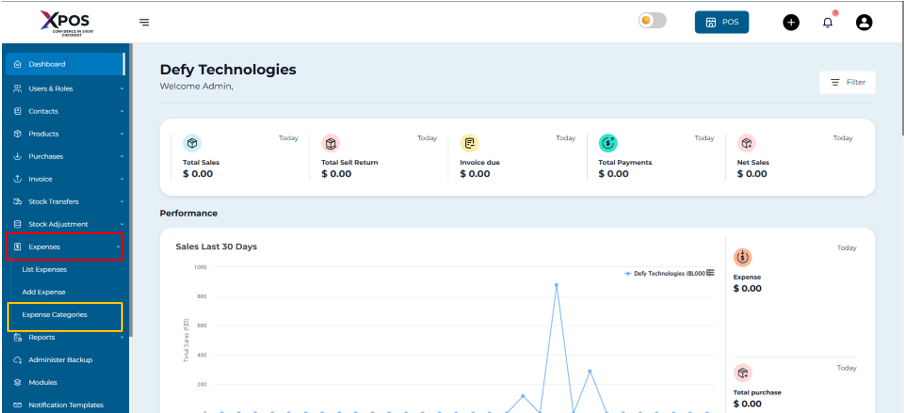
### Step 1: Open Accounting
- Go to the **Dashboard**
- Click **Expense Category** from the sidebar menu
[](https://learn.defy.com.fj/uploads/images/gallery/2026-02/39odfRAEhjQIJeXD-screenshot-2026-02-08-160233.png)
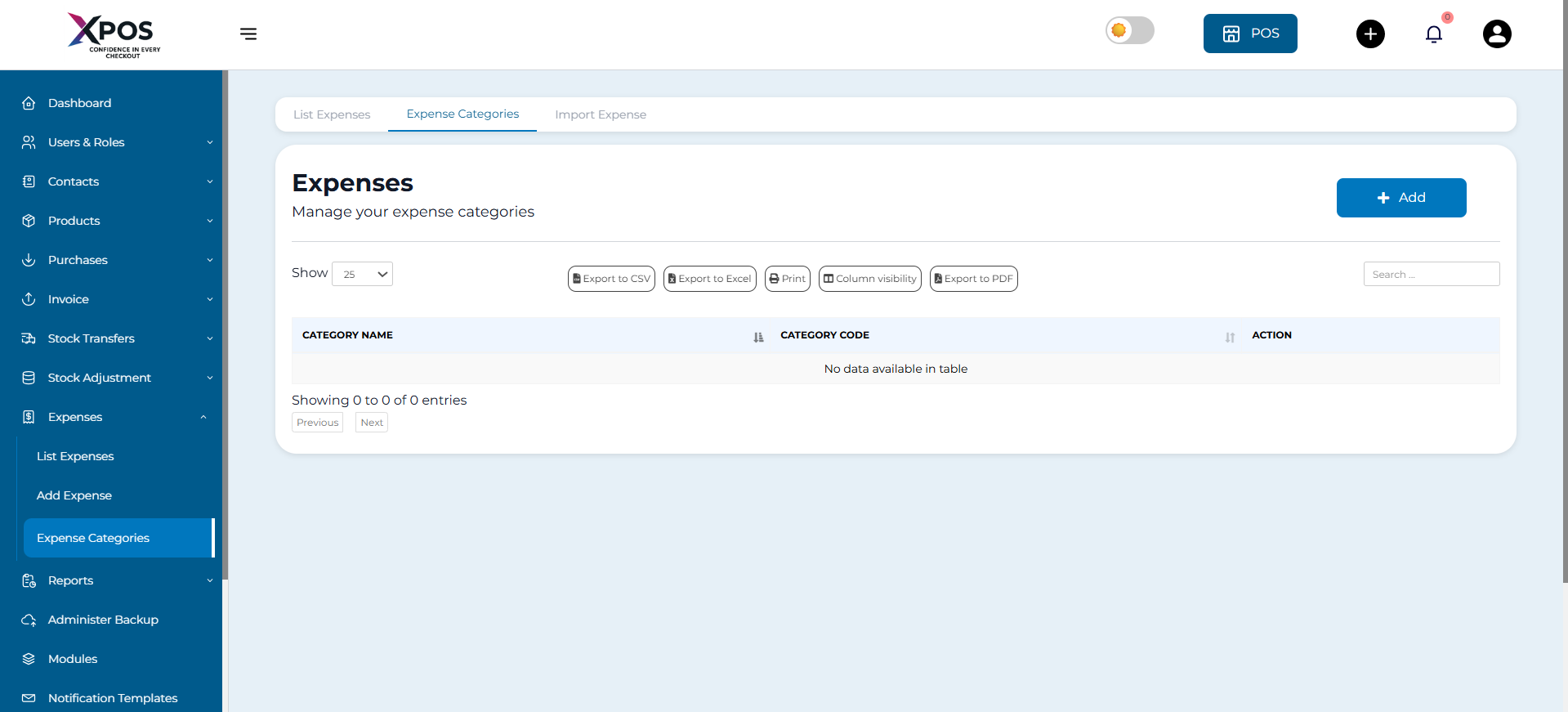
### Step 2: Open Expenses
- Select **Expenses** to access the expense management page
[](https://learn.defy.com.fj/uploads/images/gallery/2026-02/0A20rTxN0VgYdQOf-screenshot-2026-02-08-160507.png)
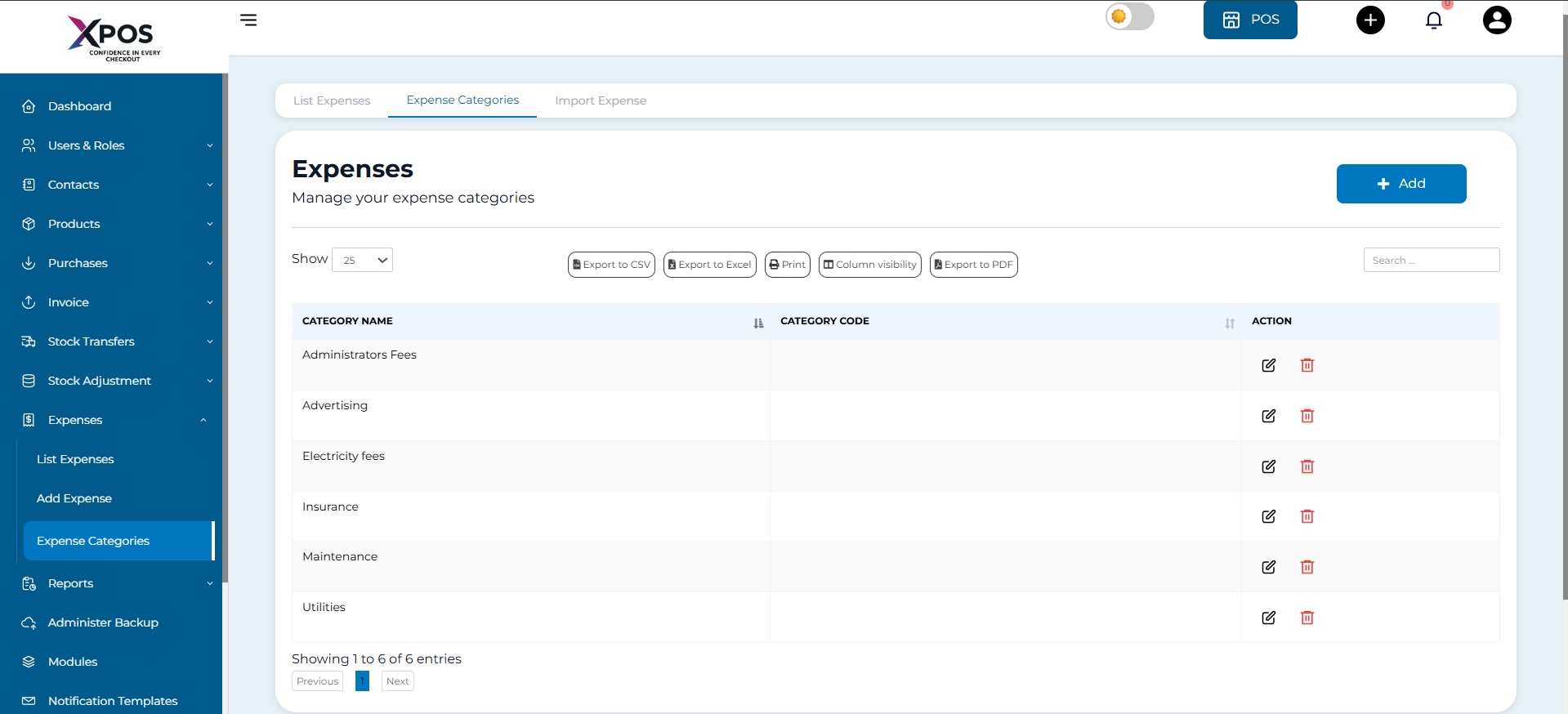
### Step 3: View Existing Categories
- At the top of the page, you will see your existing expense categories displayed as cards
- Each card represents one expense category
[](https://learn.defy.com.fj/uploads/images/gallery/2026-02/o1fmPKVbf5K5hOlb-screenshot-2026-02-08-161836.png)
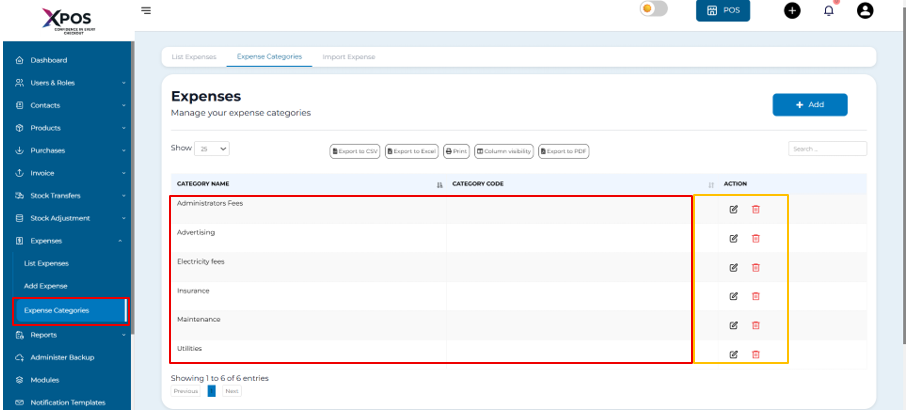
### Step 4: Understand Category Options
- The **category name** is shown on the left side.
- On the right side, you will find options to:
- **Edit** the category
- **Delete** the category
[](https://learn.defy.com.fj/uploads/images/gallery/2026-02/5HlauP7atHoaeoZM-screenshot-2026-02-08-162048.png)
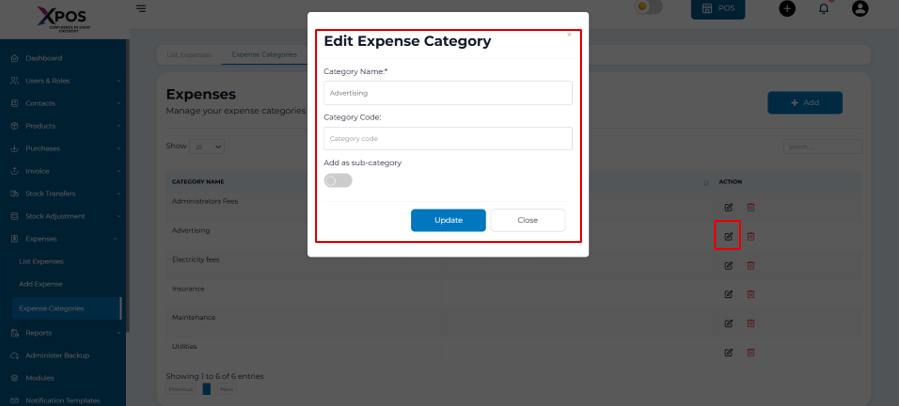
### Step 5: Edit an Expense Category
- Click the **Edit** button next to the category
- Update the category name as needed
- Save the changes
[](https://learn.defy.com.fj/uploads/images/gallery/2026-02/IdOy8ucoTkpxMyuG-screenshot-2026-02-08-162532.png)
**Steps to Add a New Expense Category**
------------------------------------------------------------------------
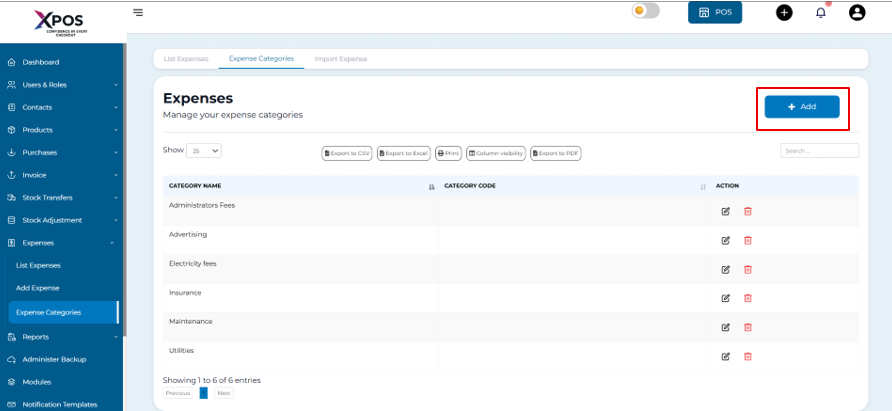
### Step 6: Open Add Category Form
- Click the **Add Category** button
[](https://learn.defy.com.fj/uploads/images/gallery/2026-02/8k5eMeeBPb3sxAAN-screenshot-2026-02-08-163120.png)
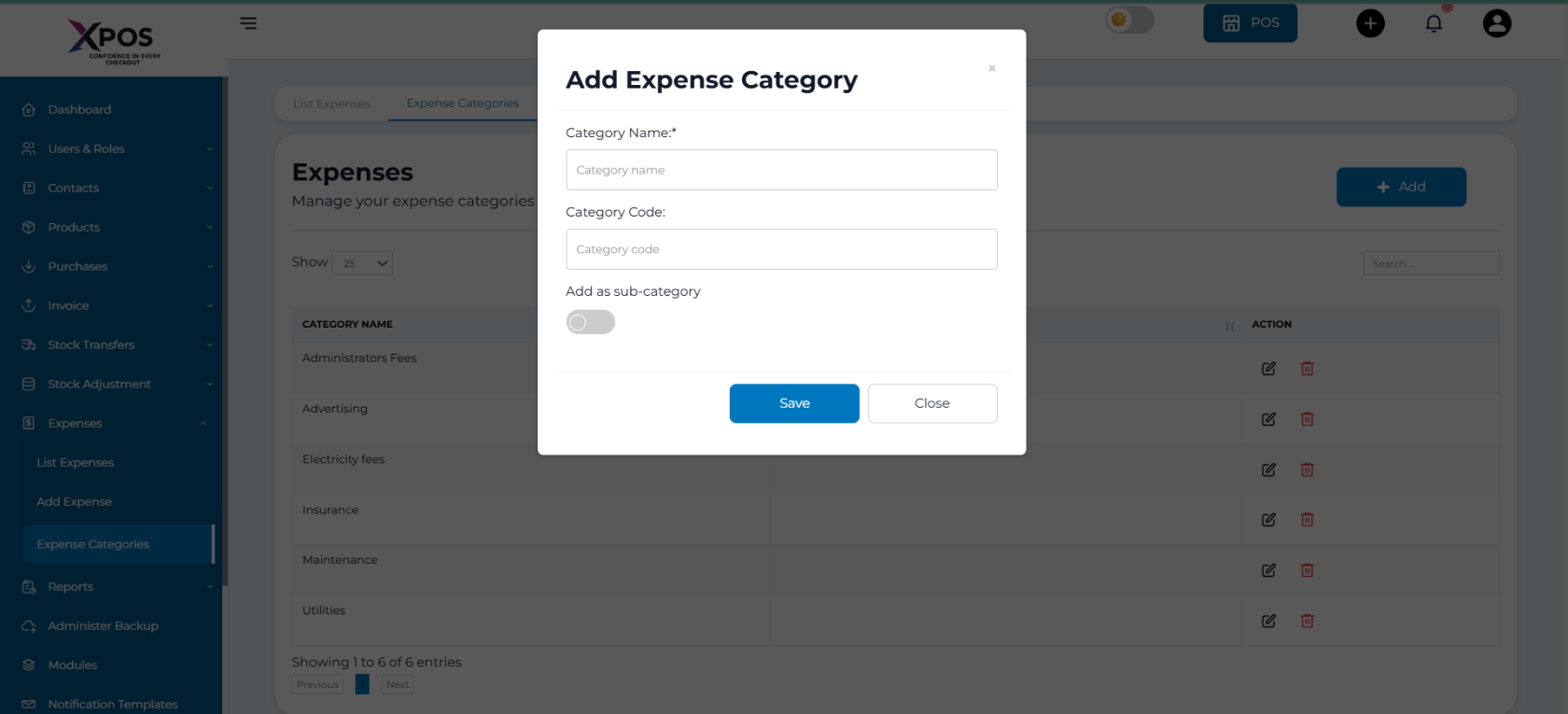
### Step 7: Enter Category Details
- Type the name of the new expense category
[](https://learn.defy.com.fj/uploads/images/gallery/2026-02/pXWVjZqBHMT1XVGn-screenshot-2026-02-08-163308.png)
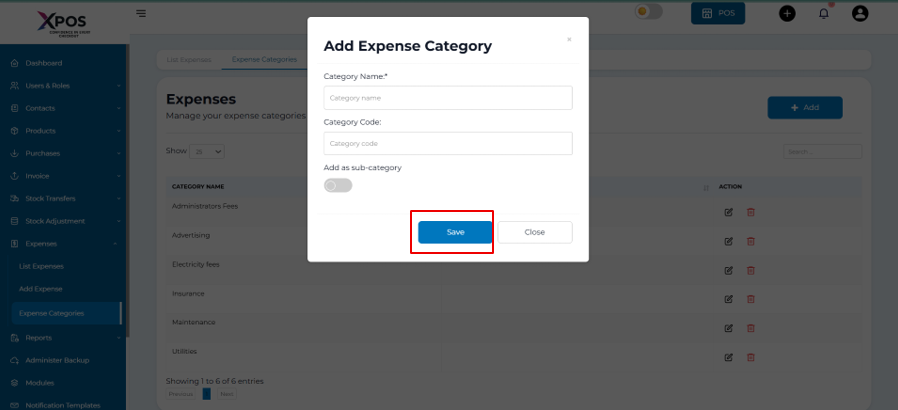
### Step 8: Save the Category
- Click **Save**
[](https://learn.defy.com.fj/uploads/images/gallery/2026-02/LTHaVM122qkxHthR-screenshot-2026-02-08-163433.png)
### Step 9: Confirm Category Creation
- The new category will appear in the list of expense categories