Installation & Setup Guide
XPOS is a cloud-based software. Follow the steps below to set up and start using the application.
1. Subscription & Account Setup
- Purchase an XPOS subscription from Defy Technologies.
- After payment, a server will be provisioned automatically, and you will receive an access hostname.
- Your Product Key will be emailed to you.
Payment Methods:
- Offline: Bank transfer. Our finance team will review and send account details.
- Online: Vodafone M-Paisa. Fully automated process.
Note: Steps 2 and 3 are completed only after payment confirmation.
2. Accessing XPOS via Web
- Open your access hostname URL in Google Chrome (recommended).
- Log in using credentials provided by your system administrator.
3. POS Terminal Setup
-
Download the latest Windows client from Defy Downloads.
-
Disable Windows SmartScreen.
-
Double-click the setup file and follow the on-screen instructions.
-
Open the software via the desktop icon.
-
Enter the following:
- Product Key (emailed to you)
- Client Name
- Server Hostname
-
Click Activate. Your software is now ready to use.
If you encounter any issues, contact support:
- Phone: 9991688 / 7771688
- Email: support@defy.com.fj
4. Login Credentials
- Your admin will provide your username and password for logging into the system.
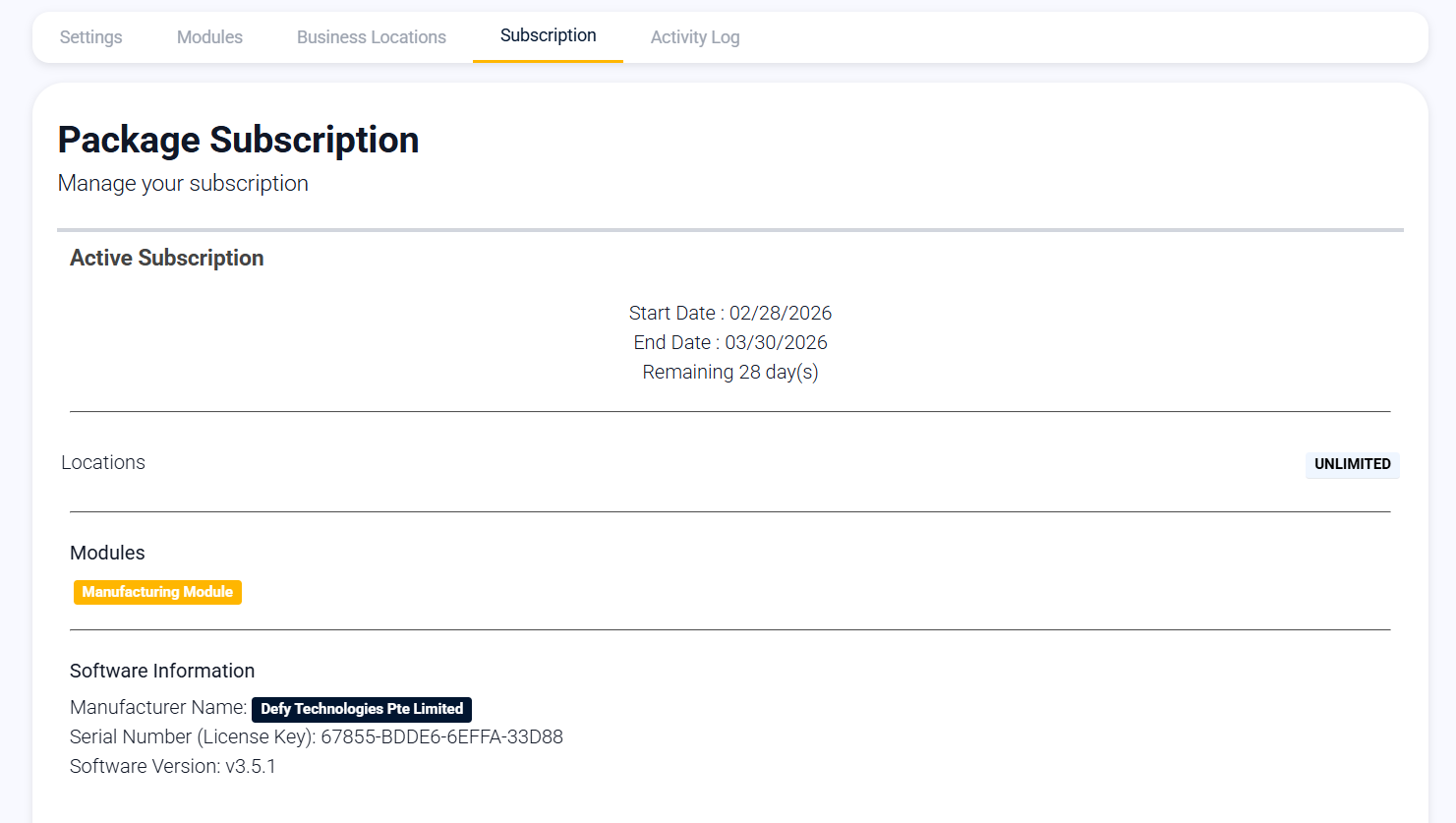
5. Subscription Details
- Go to Settings → Subscription to view your subscription info, including Manufacturer, Serial Number, and Software Version.