# Sales Order
Sales Order Overview
=========================================================
A **Sales Order** is a formal document issued by the seller to the buyer in response to a **Purchase Order**. It confirms the details of the transaction before goods are delivered.
A sales order typically includes:
- Buyer billing information
- Delivery details
- Product list and quantities
- Pricing, taxes, and discounts
- Payment terms and payment information
- Shipping charges (if applicable)
- Additional notes or instructions
Once the buyer approves the sales order, the seller proceeds with shipping the goods.
### Sales Order Statuses
A sales order can have the following statuses:
- **Ordered** – Order has been created
- **Partial** – Order has been partially fulfilled
- **Completed** – Order has been fully processed Step-by-Step: Enabling Sales Orders
1. Go to **Settings**.
2. Select **Business Settings**.
3. Open the **Sales** tab.

4. Enable **Sales Order**.
5. Click **Update Setting.**
****
Step-by-Step: Creating a Sales Order
=========================================================================
1. Go to **Invoice** and click on **List POS.**
2. Click on **Sales Orders**.
3. Select **Add Sales Order**.

1. Enter all required details such as:
- Customer information
- Products and quantities
- Pricing, tax, and discounts
- Shipping Details
2. Click **Save**.
**Note:** Inventory is **not deducted** when a sales order is created.
Step-by-Step: Printing and Sharing a Sales Order
=====================================================================================
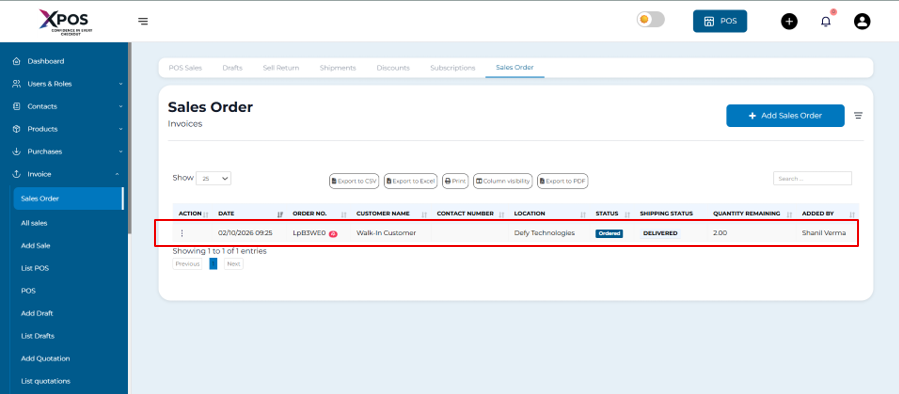
1. Open the created sales order.
[](https://learn.defy.com.fj/uploads/images/gallery/2026-02/7IiSFgddfYqs43Zk-screenshot-2026-02-10-120042.png)
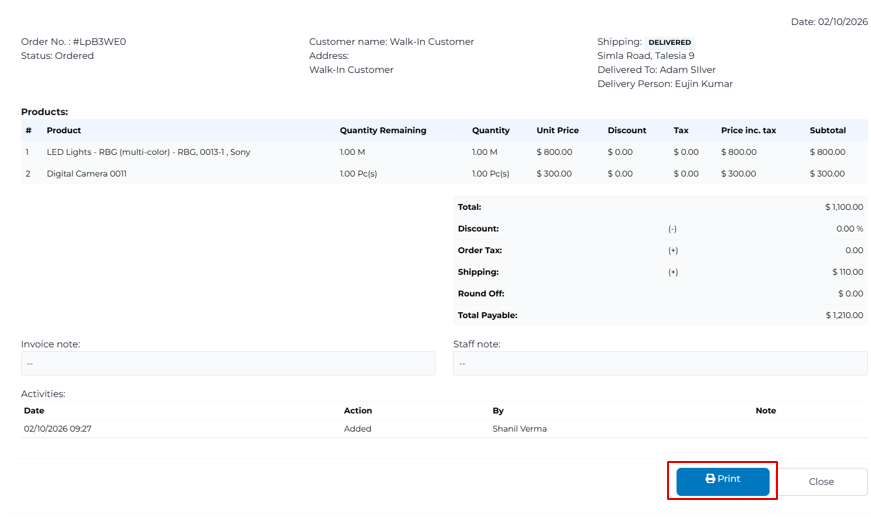
2. Click **Print**.
[](https://learn.defy.com.fj/uploads/images/gallery/2026-02/wSvqJ615d3TmAUVG-screenshot-2026-02-10-120218.png)
3. Share the printed or digital copy with the buyer for approval.
Step-by-Step: Converting a Sales Order to a Sale
=====================================================================================
Once the buyer approves the sales order, it can be converted into a sale.
1. Go to **Invoice→ Add Sale**.
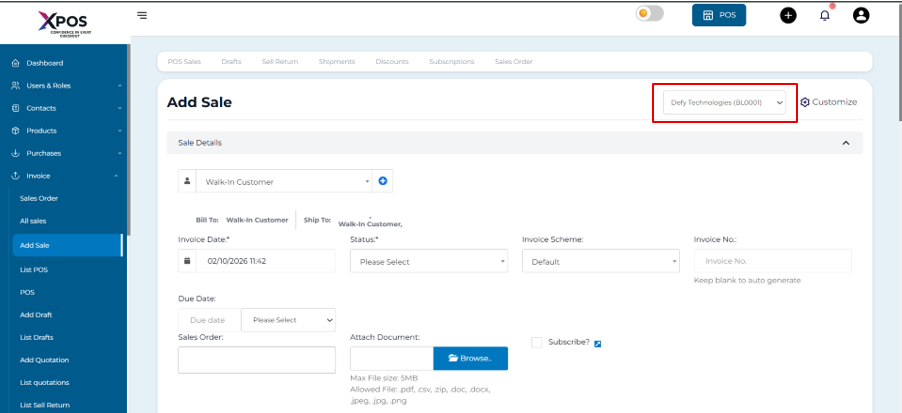
2. Select the **Business Location**.
[](https://learn.defy.com.fj/uploads/images/gallery/2026-02/cYUI8xOgWibQ11VT-screenshot-2026-02-10-114515.png)
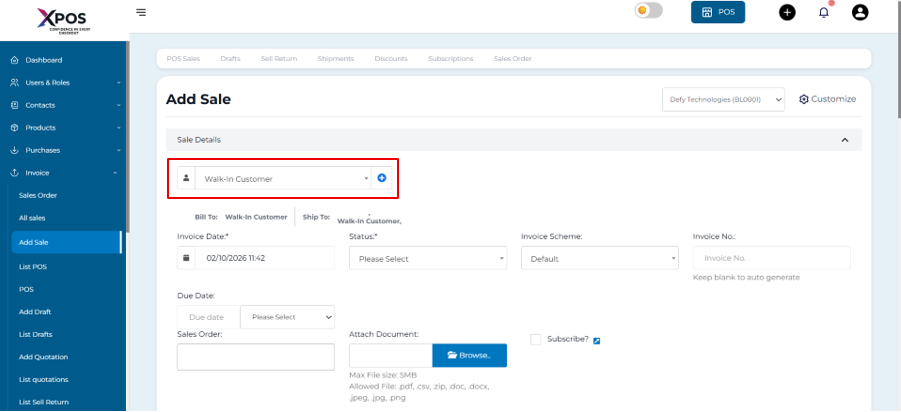
3. Choose the **Customer**.
[](https://learn.defy.com.fj/uploads/images/gallery/2026-02/YQeFa6DpXtZ0Ul4t-screenshot-2026-02-10-114635.png)
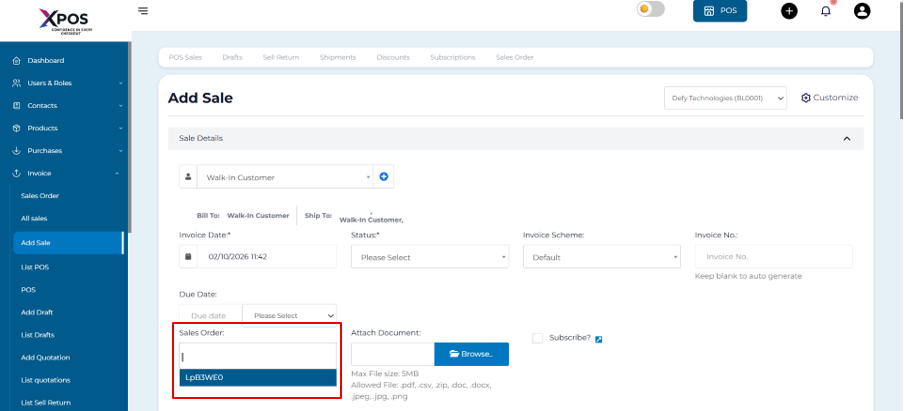
4. Open the **Sales Order** dropdown.
5. Select the approved sales order.
[](https://learn.defy.com.fj/uploads/images/gallery/2026-02/vcizgFnvJJrOJPmV-screenshot-2026-02-10-114847.png)
6. The system will automatically load:
- Products
- Prices
- Taxes
- Discounts
7. Adjust product quantities if needed.
8. Complete and save the sale.