Searching Invoices
Overview
XPOS allows operators to search and retrieve invoices efficiently. You can search using invoice numbers or refine results with multiple filters including customer, payment status, date, and more. This ensures accurate invoice tracking, reporting, and auditing.
Steps to Search an Invoice
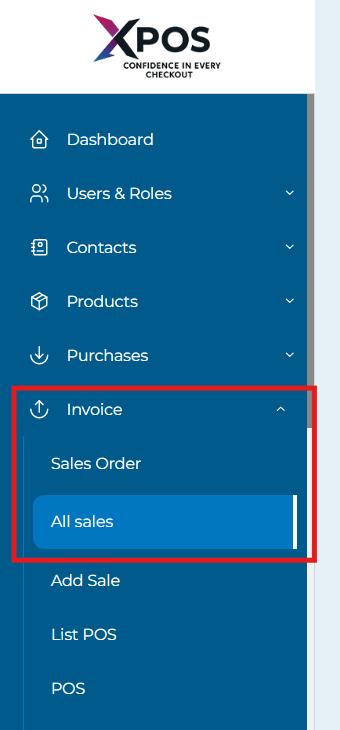
- Log in to XPOS and navigate to the Invoice section from the right-hand side menu.
- Click All Sales to open the list of all sales. The system navigates to
/sells.

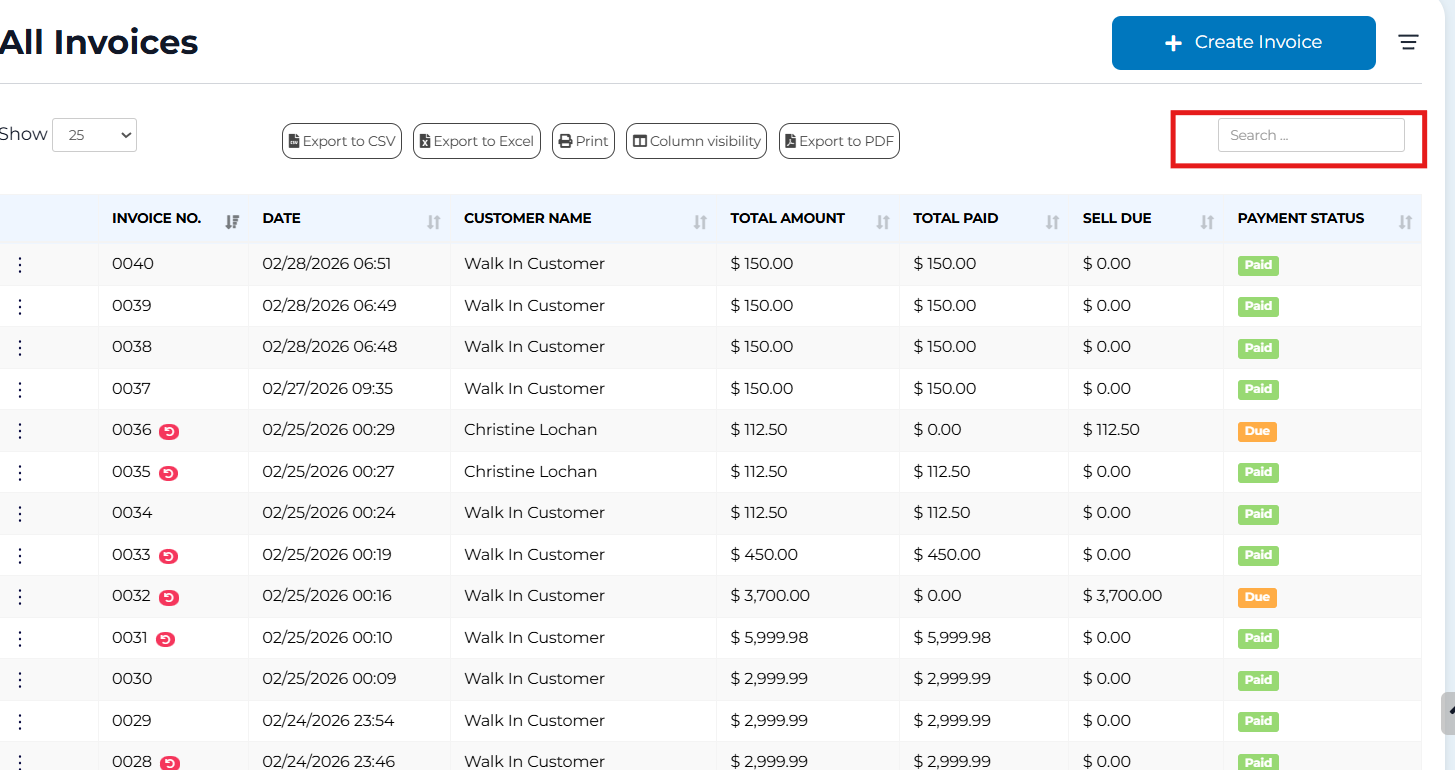
- Enter either:
- Local Invoice Number – the invoice generated by XPOS locally.
- SDC Invoice Number – the number submitted to TaxCore.

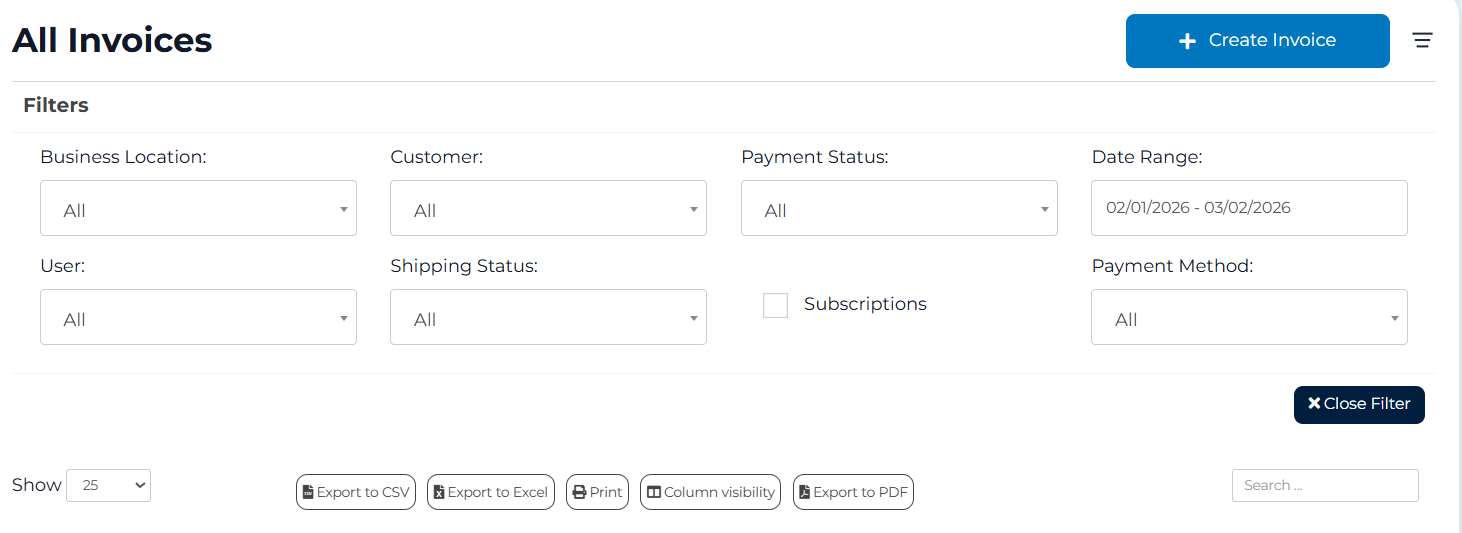
- Optionally, apply filters to narrow down results.
- Upon entry of the invoice number, system automatically performs search via Ajax Mode.
Note: Reference numbers are automatically validated by XPOS when linked to advance/proforma invoices, refunds, or copy invoices. The system ensures no incorrect payload is submitted to TaxCore.
Available Filters
| Filter | Description |
|---|---|
| Business Location | Filter invoices by specific business branches or locations. |
| Customer | Retrieve invoices for a specific customer. |
| Payment Status | Filter invoices by payment status (Paid, Pending, Partially Paid). |
| Date Range | Specify a start and end date to retrieve invoices issued within the range. |
| User | Filter invoices generated by a specific user/operator. |
| Shipping Status | Filter invoices by delivery status (Shipped, Pending, Cancelled). |
| Subscriptions / Payment Method | Filter by subscription type or payment method used. |
Tips for Searching
- Always double-check invoice numbers before searching to avoid empty results.
- Use multiple filters together (e.g., Date Range + Customer) to quickly narrow down results.
- For refunds or copy invoices, always use the reference number to find the correct original invoice.
- XPOS automatically syncs with TaxCore, ensuring that search results match submitted data.