# Subscriptions
Subscriptions – Step-by-Step Guide
=======================================================================
Step 1: Enable the Subscriptions Feature
-----------------------------------------------------------------------------
1. Go to **Setting** **→ Business Setting → Modules**.
2. Check the option **Enable Subscriptions**.
3. Click **Upload Setting.**
[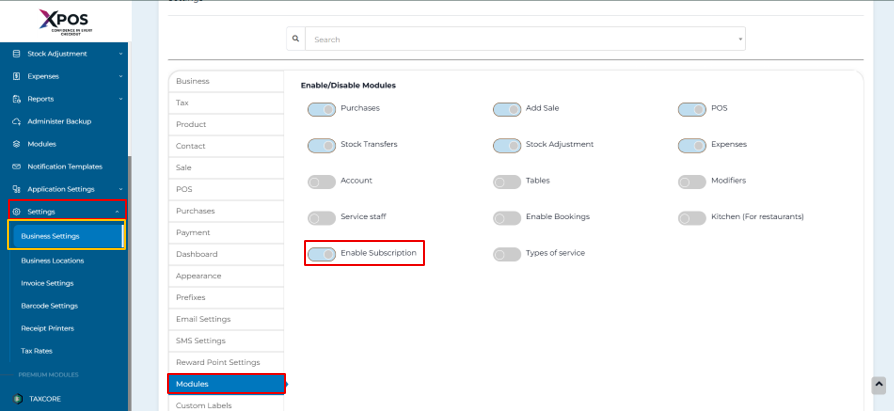](https://learn.defy.com.fj/uploads/images/gallery/2026-02/gQ2Kn3tUP21uu1Qc-screenshot-2026-02-09-143624.png)
Step 2: Create a Subscription from POS or Sales Screen
-------------------------------------------------------------------------------------------
1. Go to **Invoice** and open **POS** or **Sales Screen**
2. Add products to the sale as usual.
3. Select the **Subscribe?** checkbox.
[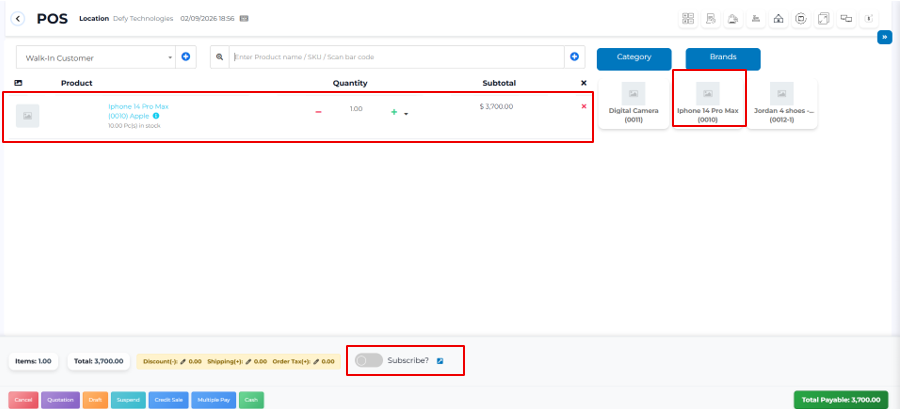](https://learn.defy.com.fj/uploads/images/gallery/2026-02/4GZ6jtWNCrqBNVTt-screenshot-2026-02-09-185819.png)
Step 3: View and Manage Subscriptions
--------------------------------------------------------------------------
1. Go to **Invoice → List POS → Subscriptions**.
2. View the list of all subscriptions.
3. Use the available options to **start or stop** a subscription as required.

Step 4: Automatic Invoice Generation & Notifications
---------------------------------------------------------------------------------------------
1. The system automatically generates subscription invoices based on the set frequency.
2. When an invoice is created:
- A notification is sent to the **Administrator**.
- A notification is sent to the **Salesperson**.