Mapping Payment Methods
<ol>
Note: This <li>
only works <strong>Loginif Taxcore is connected to Administrationthe Portal</strongsystem.
- Go to
taxcore/settings(Taxcore-><br>Settings). - Click on Map Payment Labels.
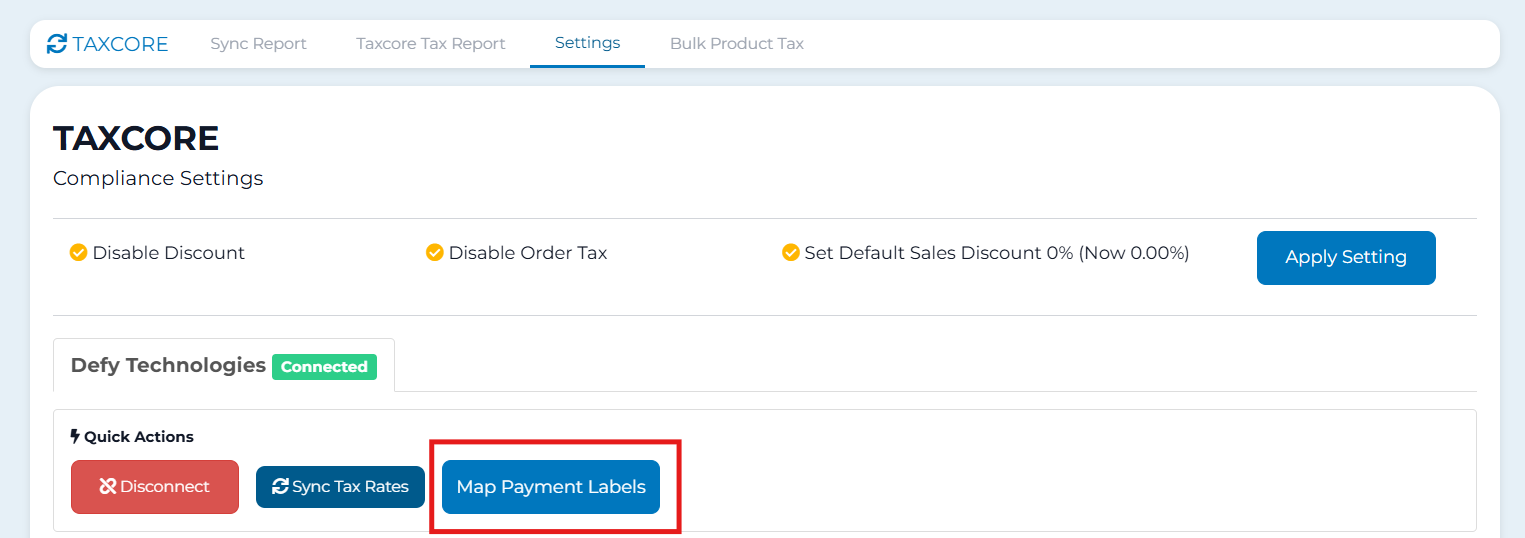
Access - The system communicates with the
AdministrationVSDCPortalAPIusingandaretrievesmastertheadminfollowingaccount.<br>
payment methods:<em>Note:</em>- Cash
- Card
- Check
- Wire
Providers)Transfer - Voucher
- Mobile
- Other
OnlySystemAdmins(Servicecanaccessthisportal. - Payment
methods are
<li>
automatically<strong>Navigatemapped toPaymenttheMethods</strong><br>
system. ManualFromaddition is not allowed because thedashboard,systemopenstrictlythefollows<strong>Payment Methods</strong> settings tab.</li><li><strong>View and Manage Existing Methods</strong><br>You will see a list of payment methods provided by the platform, including icon, name, type, surcharge, and status.<ul><li>To update a method, click <strong>Edit</strong>.</li><li>To remove a method, click <strong>Delete</strong>.</li></ul></li><li><strong>Add a New Payment Method</strong><br>Click <strong>Create Method</strong>, enter the name, icon, and other options, then click <strong>Save</strong>.</li><li><strong>Supported Payment Methods</strong><br>Only methods approved by FRCSVSDC-based VMSServicerequirements.