
All Sales (Selling, Credit Sales, Draft, Quotation & Suspended Sales)
Step 1: Open the POS Screen
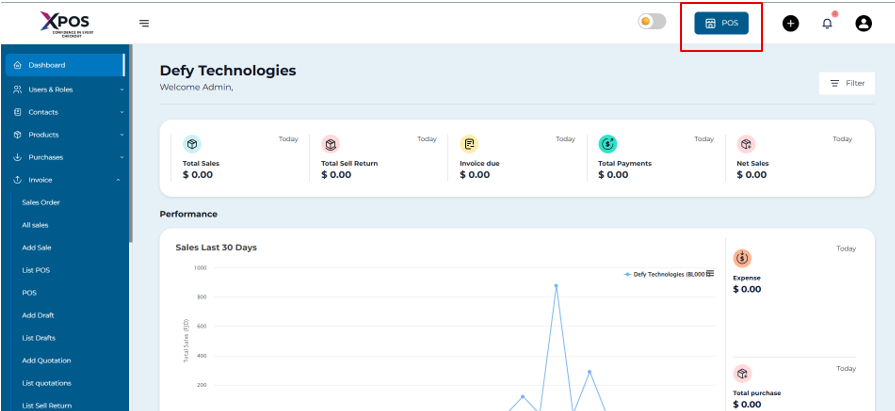
GoClicktoonInvoiceClickListPOSthen go to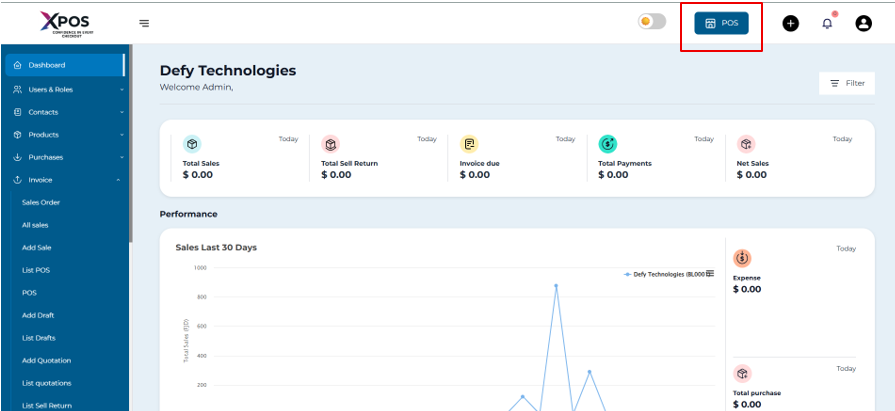
POS salesClickAdd
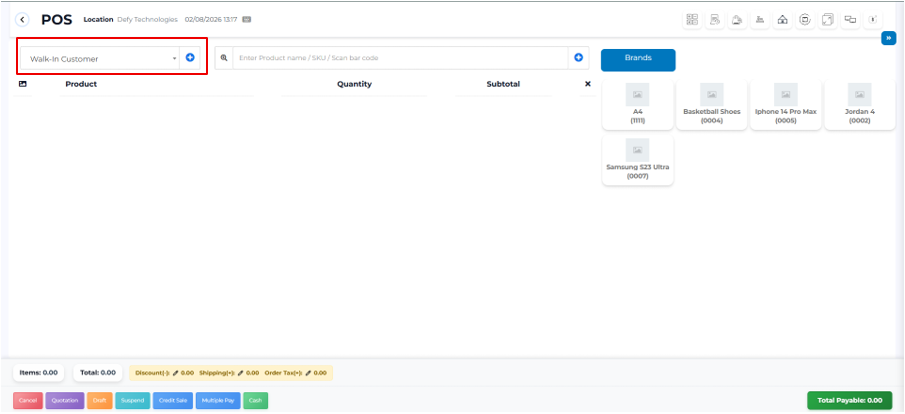
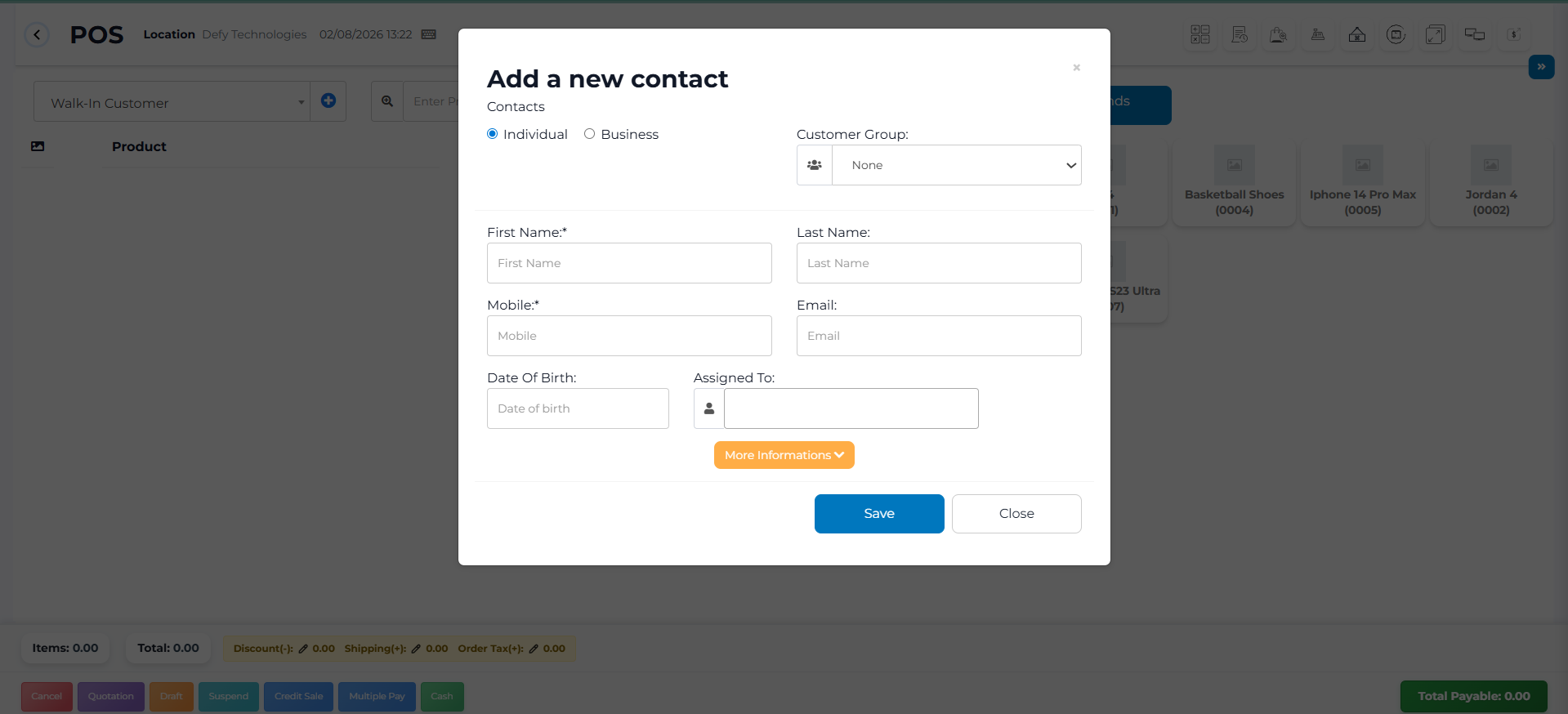
Step 2: Select a customer
By default, Walk-In Customer is selected.
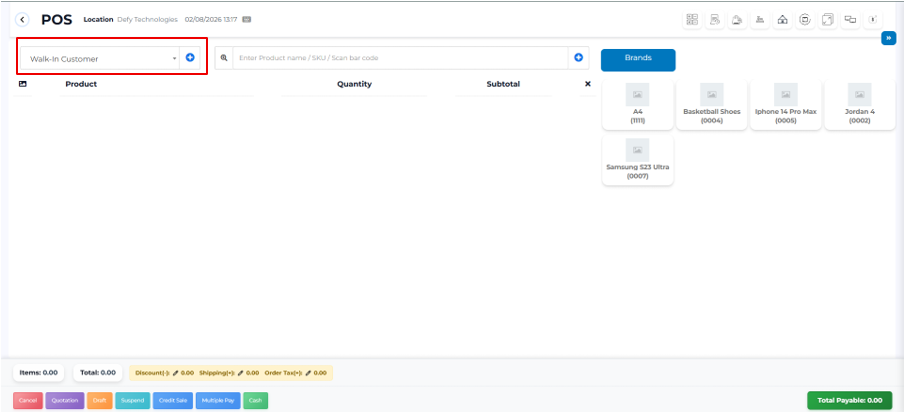
To select an existing customer:
- Search by Name, Email, or
**Phone Number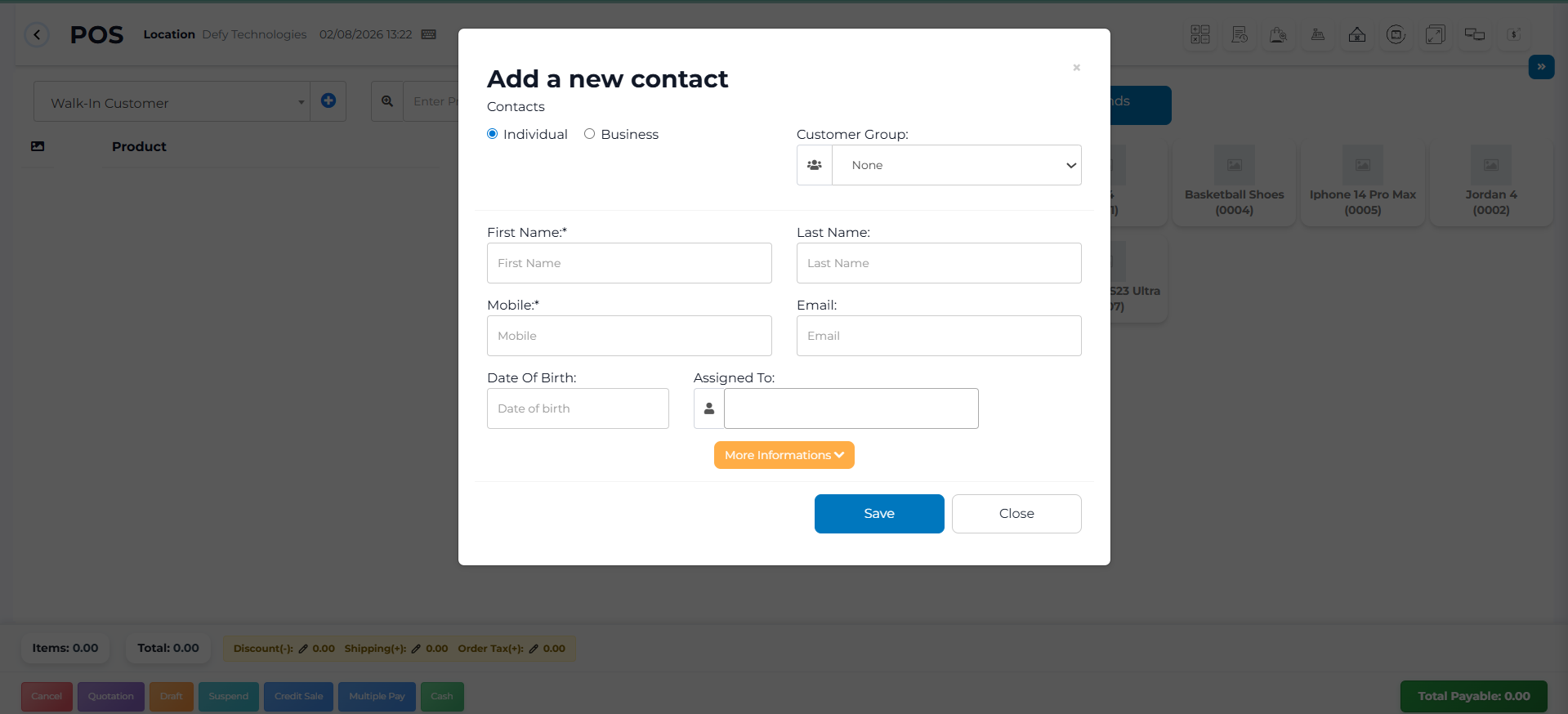
- Search by Name, Email, or
Step 3: Search and Add Products
-
Enter the product name in the search bar or scan the barcode.
-
If multiple products appear:
- Select the correct product from the dropdown list.
-
If only one product matches:
- The product is added to the cart automatically.
Step 4: Modify Product Details (If required)
-
Click on the product name in the cart.
-
Update any of the following:
- Selling price
- Tax
- Discount
Note: Product-level tax editing is available only if Inline Tax is enabled
(Business Settings → Tax → Enable Inline Tax in Purchase and Sell).
Step 5: Select Lot Number or Expiry Date (If enabled)
- If lot tracking is enabled, choose the lot number.
Step 6: Cancel the Sale (Optional)
- Click Cancel if the transaction should not proceed.
- Canceled sales are not saved, and stock remains unchanged.
Step 7: Finalize the Sale
Click Finalize.
- Select the payment method.
- Enter the payment amount.
- Click Save to complete the sale.
Step 8: Print the Invoice
- After saving, select the Print Invoice option.
- Ensure margin settings are set to Default for correct printing.
Step 9: Use Express Checkout (Optional)
-
Click Express Checkout.
-
The system:
- Marks the sale as Paid
- Sets the payment method to Cash
- Skips the payment screen
-
Invoice printing depends on location settings.
Step 10: Make a Credit Sale (Optional)
A. Full Credit Sale
-
Enable credit sales:
- Go to Settings → Business Settings → POS
- Enable Show Credit Sale Button
-
On the POS screen, click Credit Sale.
B. Partial Credit Sale
Example: Invoice total = $1,000
Customer pays = $700
Steps:
- Click Multiple Pay
- Select payment method and enter $700
- Finalize payment
- Remaining amount is saved as customer credit.
Step 11: View or Edit Sales Records
- Go to Sell → List Sales to view completed sales.
- Go to Sell → Drafts to view draft sales.
- Sales and drafts can be edited before finalization.
Step 12: Create Drafts or Quotations
- During a sale, select Draft or Quotation.
- Save the transaction.
- Stock is not deducted.
Step 13: Convert Draft or Quotation to Sale
- Go to Sell → List Drafts or Sell → List Quotations
- Click Actions → Edit
- Change status to Final
- Save the transaction.
Step 14: Copy a Quotation
- Go to Sell → List Quotations
- Click Actions → Copy Quotation
Step 15: Use Suspended Sales
- Click the Suspended Sales (yellow button) on the POS screen.
- Enter a reference (e.g., Table number or Room number).
- Resume and finalize the sale when required.
Step 16: Accept Payments
-
Choose a payment method:
- Cash
- Card
- Multiple Pay
-
Use Multiple Pay when:
- Customer uses more than one payment method
- Change return is required
Step 17: Pay Supplier Due Amount
- Go to Contacts → Suppliers
- Click Actions → Pay Due Amount
- Enter payment details and save.
Step 18: Enable Sales Amount Rounding
-
Go to Settings → Business Settings → Sales
-
Select a rounding method:
- Nearest whole number
- Nearest decimal (e.g., 0.05)
Step 19: Add Sales for a Past Date
From POS Screen
- Go to Business Settings → POS
- Enable Transaction Date on POS Screen
- Select the required date while selling.
From Sales Screen
- Go to Sell → Add Sale
- Select the desired Sale Date
- Save the transaction.