
FRCS TaxCore VMS System
FRCS TaxCore VMS Setup Guide
1. Overview
FRCS TaxCore is the digital tax reporting platform used by FRCS. Approved POS/ERP systems integrate with the VSDC (Virtual Sales Data Controller) to submit VAT transaction data electronically for compliance.
- Real-time or near real-time sales submission
- Digital invoice signing via VSDC
- Compliance with FRCS VMS requirements
Note that once TaxCore is configured, upon operation start, the POS and V-SDC are mutually authenticated.
2. Communication Protocol
While the official documentation states:
- V-SDC communication uses HTTPS as per the Technical Instructions for EFD Suppliers.
- E-SDC communication uses HTTP as per the Technical Instructions for EFD Suppliers.
In practice, XPOS always communicates with VSDC over HTTPS. If a connection attempt is made via HTTP, the system automatically redirects and handles it securely over HTTPS.
3. VMS Setup
3.1 Prerequisites
- VMS VSDC Certificate
- PAC (Provisioning Access Code)
- Certificate Password
- Admin access to POS
3.2 Access Settings
URL Method:
/taxcore/settings

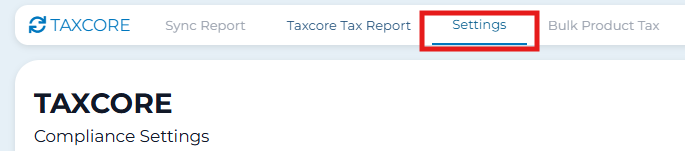
From POS:
- Open POS
- Click TaxCore icon (bottom)
- Select Settings

3.3 Configuration
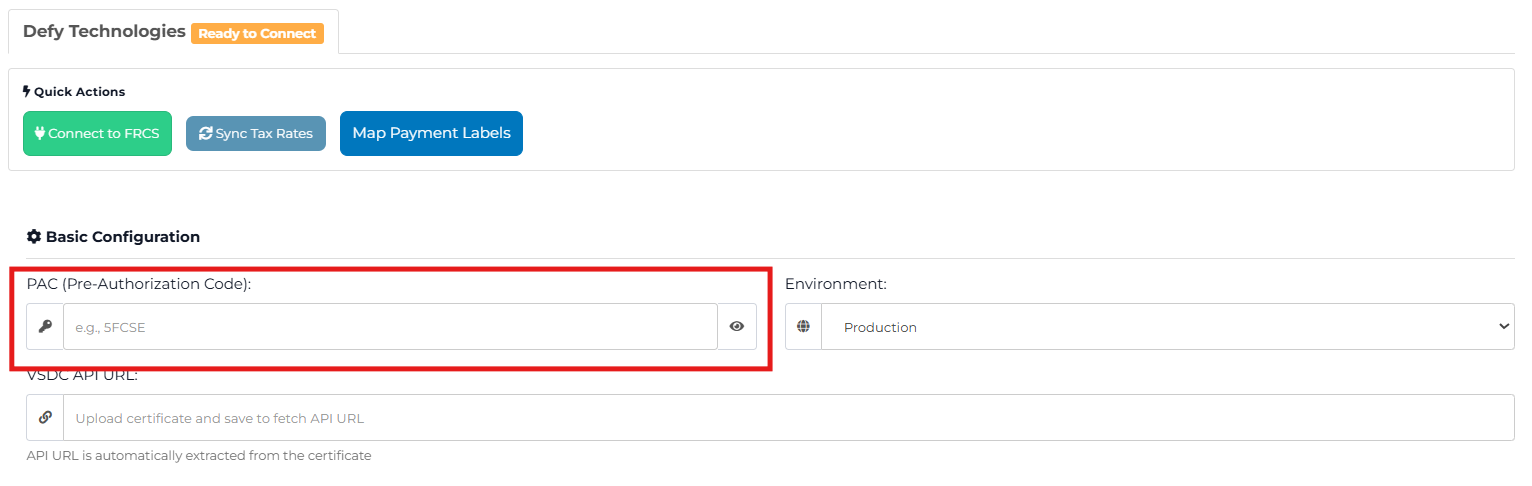
Enter PAC
Enter PAC exactly as issued.
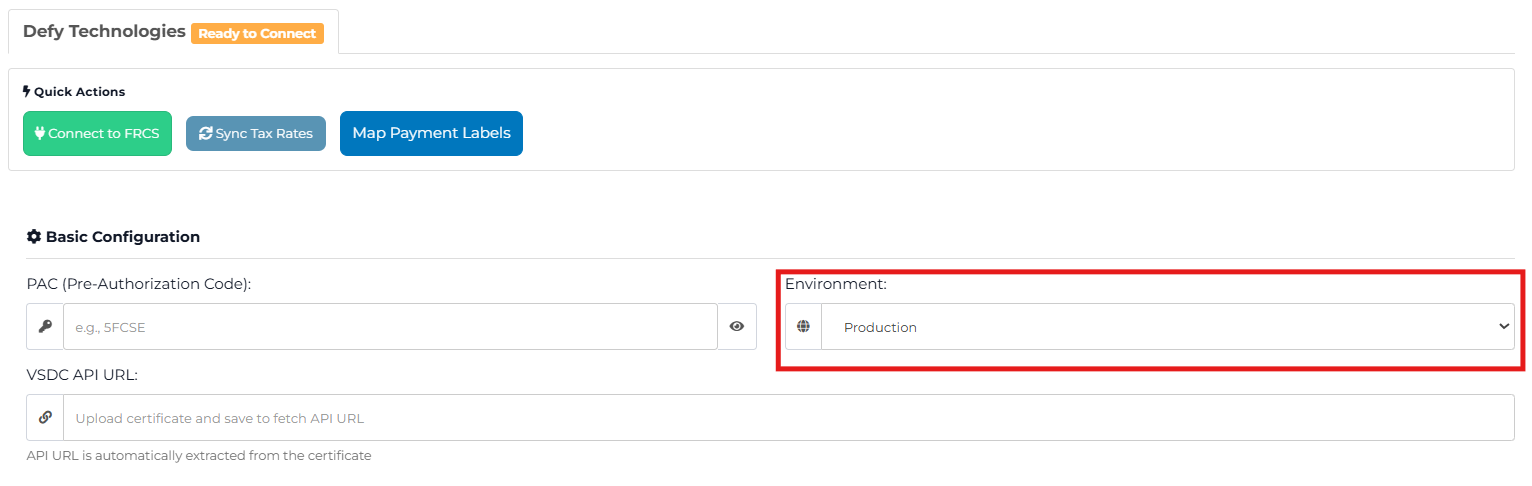
Select Environment
- Production (Live)
- Sandbox (Test)
Upload Certificate
- Click Upload Certificate
- Select VSDC certificate file

Certificate Password
Enter certificate password.

3.4 Connect to FRCS
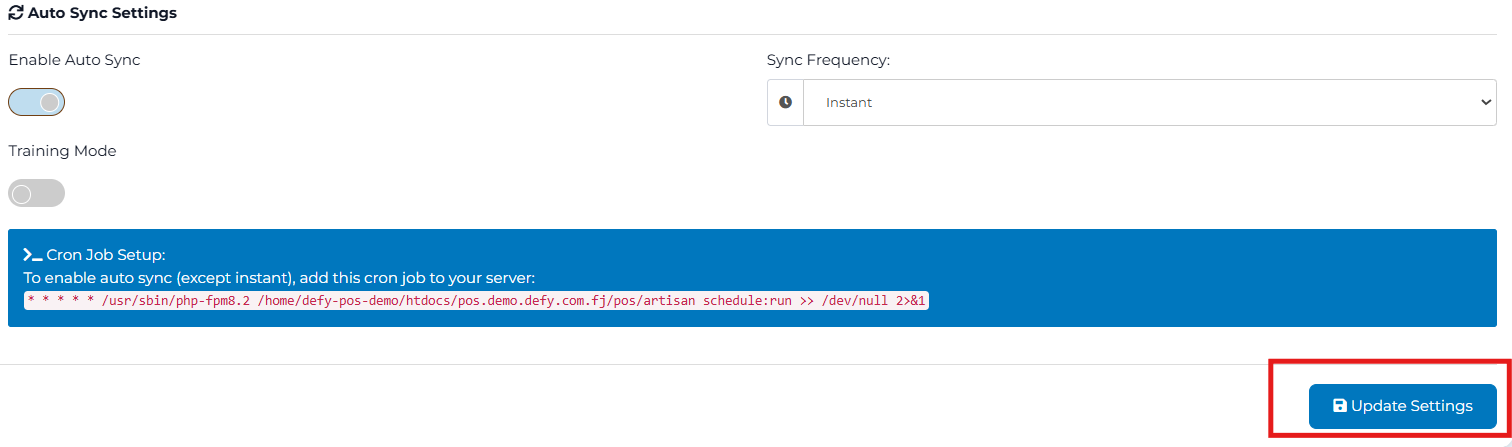
Save Settings
- Scroll down
- Click Update Settings
- Click Connect to FRCS
- Wait for validation
Connected

4. Optional Settings
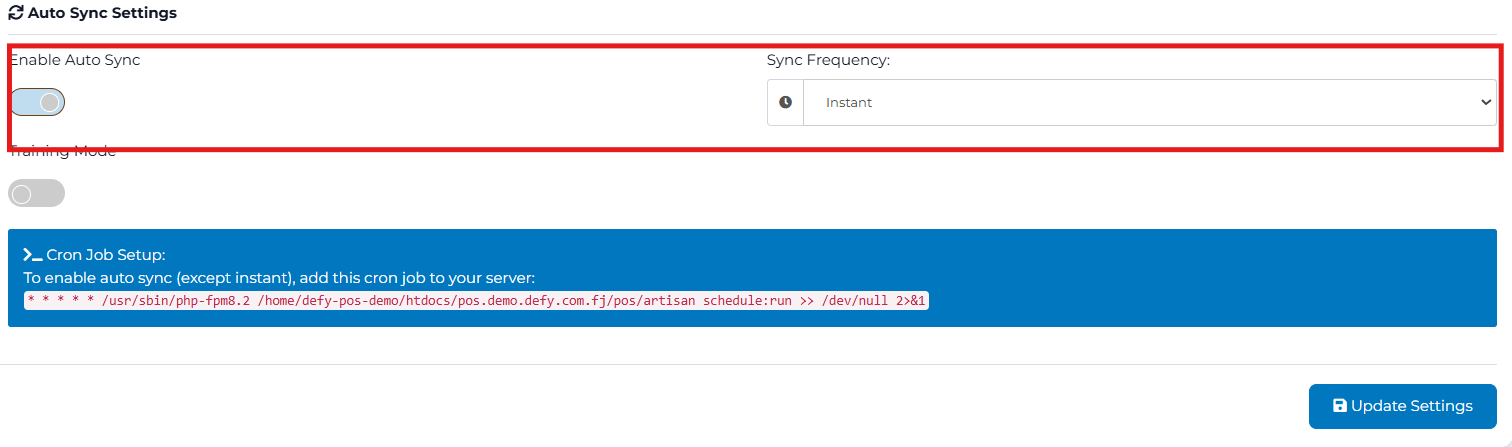
Sync Settings
- Real-time sync
- Scheduled sync
- Retry on failure
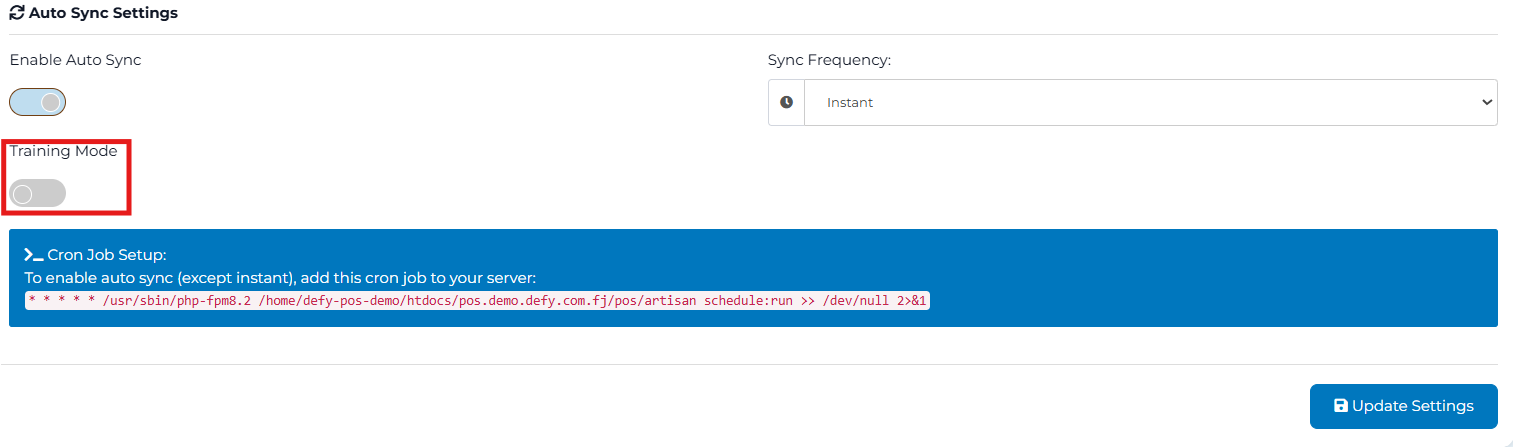
Training Mode
Enable for testing. Disable before going live.
5. Go-Live Checklist
- PAC entered
- Correct environment selected
- Certificate uploaded
- Password correct
- Status shows Connected
- Settings updated
- Training Mode OFF (Production)
6. Troubleshooting
- Recheck PAC
- Verify certificate
- Confirm password
- Check environment
- Ensure internet connection