
Importing Opening Stock
Import Opening Stock
Import Opening Stock allows you to upload the initial stock quantities for multiple products at once using a file, instead of entering them individually.
Importing Opening Stock
Follow the steps below to import opening stock:
- Go to
**Products.Products. - Select Import Opening Stock.
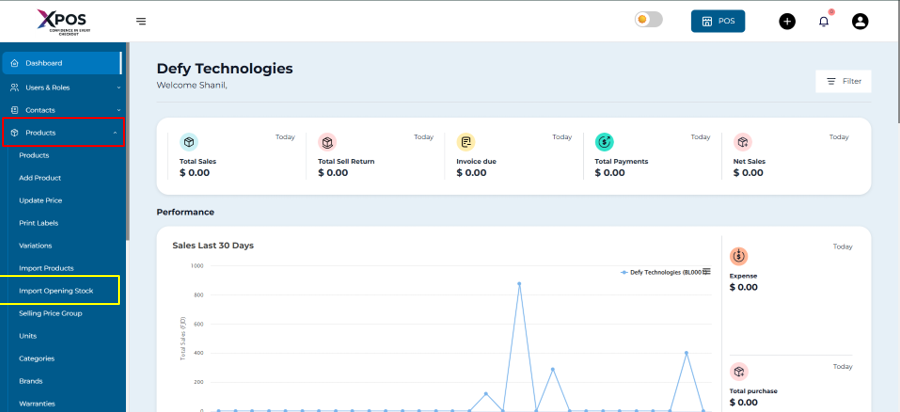
- Download the sample import file (if required).
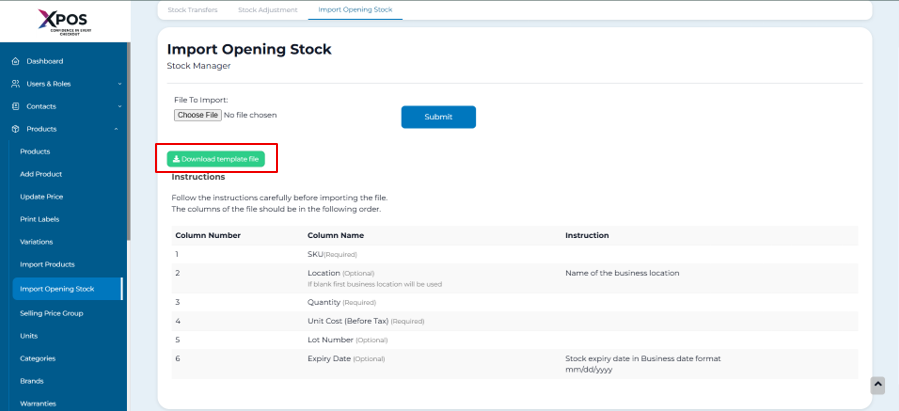
- Enter the opening stock quantities in the file.
- Upload the completed file.
- Click
ImportSubmit to apply the changes.
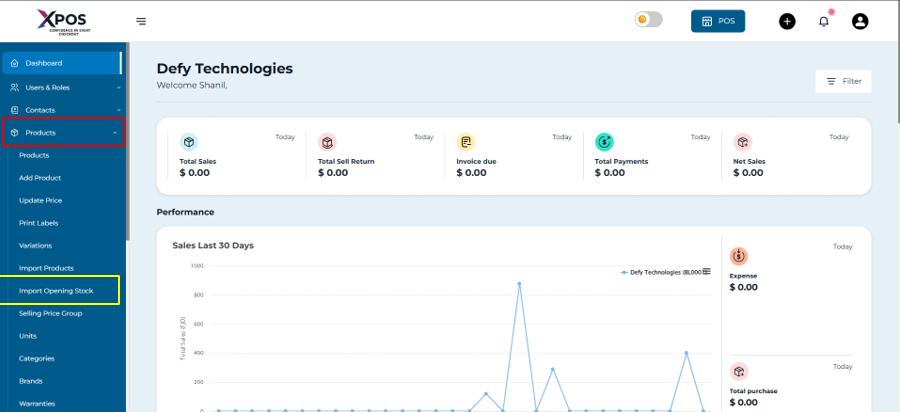
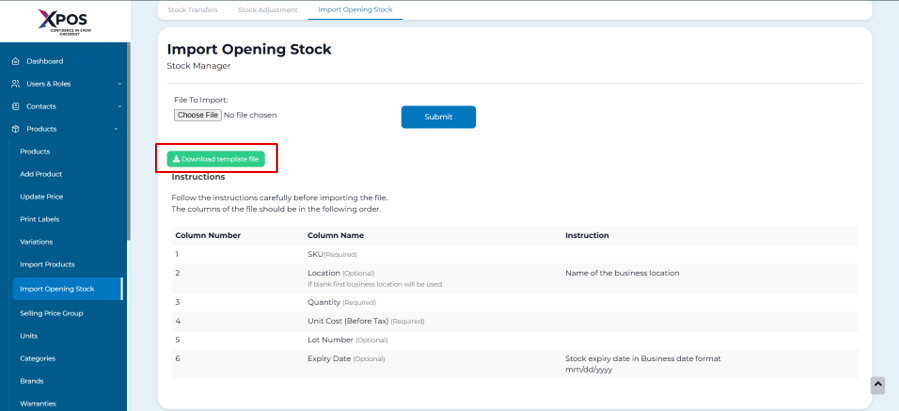
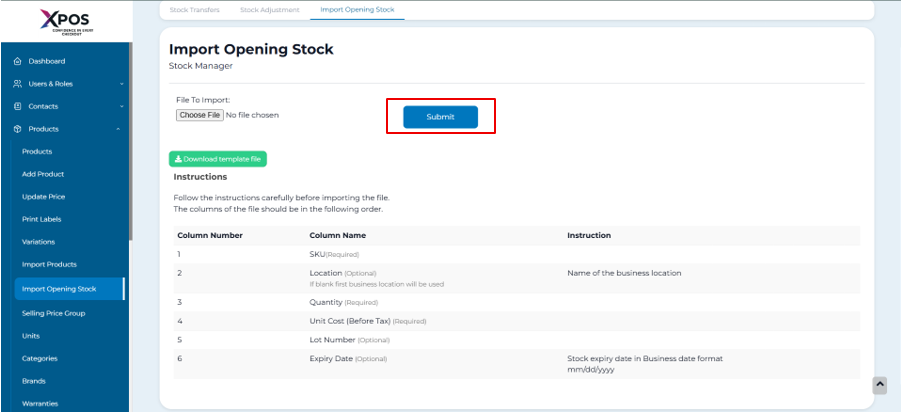
The uploaded quantities will be recorded as the opening stock for the corresponding products.
Editing Imported Opening Stock or Setting It to Zero
If opening stock has already been imported and needs adjustment, follow the steps below.
Adjust Imported Opening Stock
Adjustment Examples
-
If the existing opening stock is 10:
- Enter -10 to reduce the stock to 0.
- Enter -4 to adjust the stock to 6.
- Enter 5 to increase the stock to 15.
The system updates stock based on the adjustment values provided in the import file.