Sales Order
Sales Order Overview
A Sales Order is a formal document issued by the seller to the buyer in response to a Purchase Order. It confirms the details of the transaction before goods are delivered.
A sales order typically includes:
- Buyer billing information
- Delivery details
- Product list and quantities
- Pricing, taxes, and discounts
- Payment terms and payment information
- Shipping charges (if applicable)
- Additional notes or instructions
Once the buyer approves the sales order, the seller proceeds with shipping the goods.
Sales Order Statuses
A sales order can have the following statuses:
- Ordered – Order has been created
- Partial – Order has been partially fulfilled
- Completed – Order has been fully processed Step-by-Step: Enabling Sales Orders
- Go to Settings.
- Select Business Settings.
- Open the Sales tab.

-
Enable Sales Order.
-
Click Update Setting.

Step-by-Step: Creating a Sales Order
- Go to Invoice and click on List POS.
- Click on Sales Orders.
- Select Add Sales Order.

-
Enter all required details such as:
- Customer information
- Products and quantities
- Pricing, tax, and discounts
- Shipping Details
-
Click Save.
Note: Inventory is not deducted when a sales order is created.
Step-by-Step: Printing and Sharing a Sales Order
- Open the created sales order.
- Click Print.
- Share the printed or digital copy with the buyer for approval.
Step-by-Step: Converting a Sales Order to a Sale
Once the buyer approves the sales order, it can be converted into a sale.
-
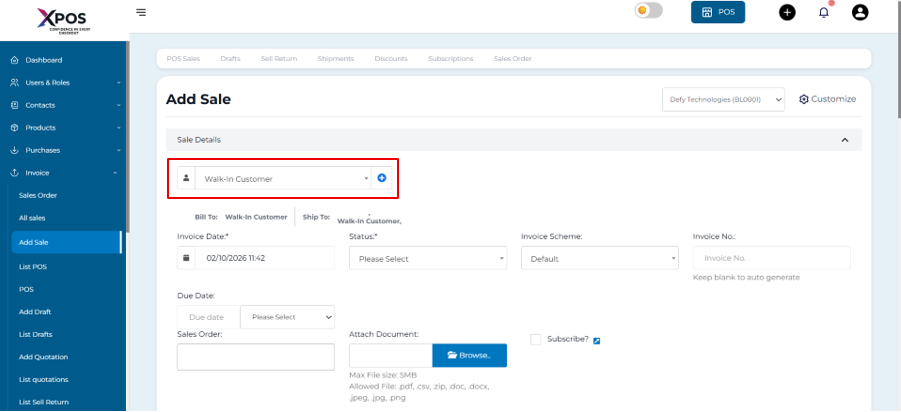
Go to Invoice→ Add Sale.
-
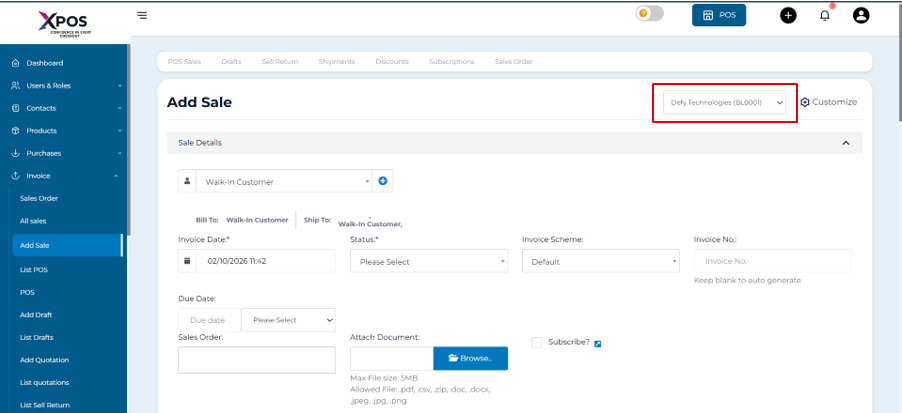
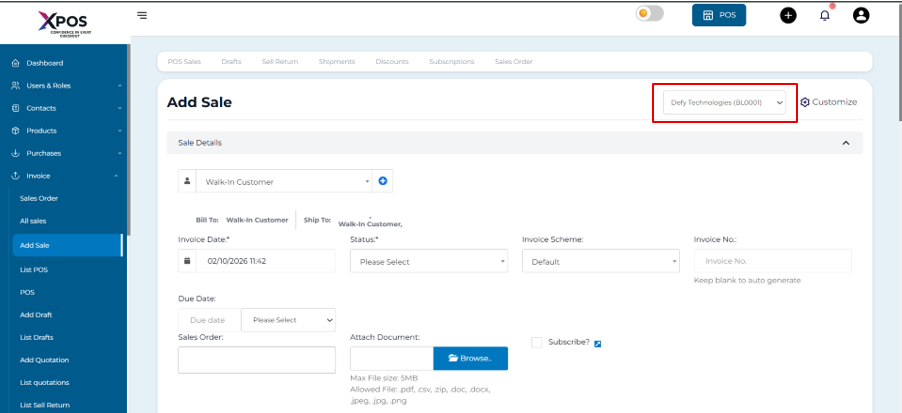
Select the Business Location.
-
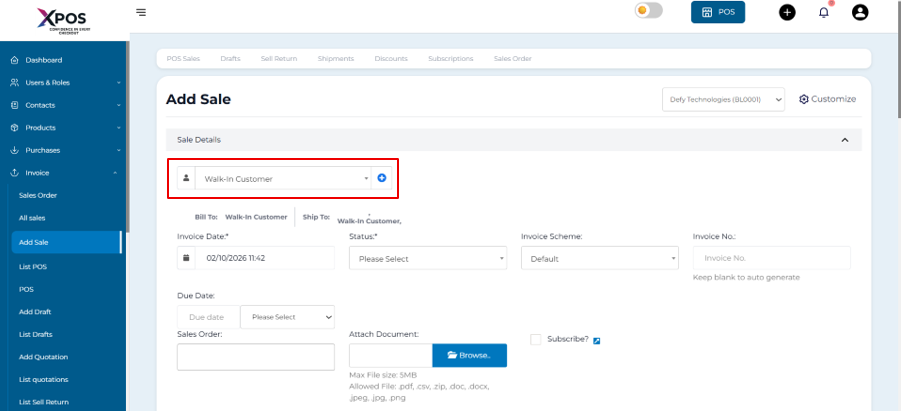
Choose the Customer.
-
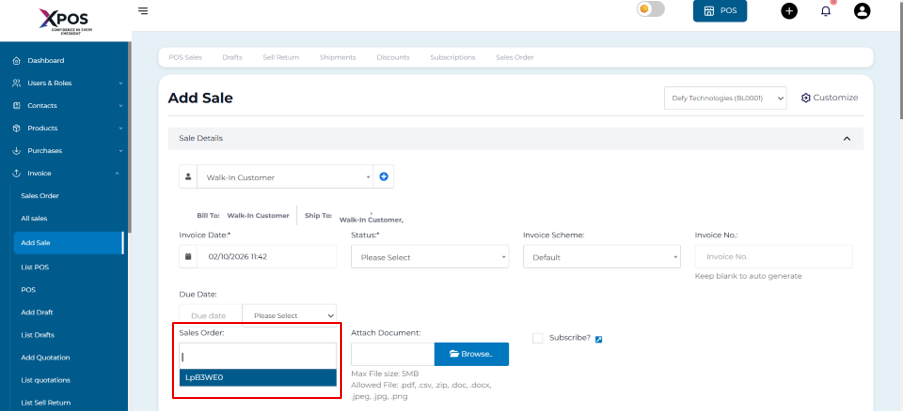
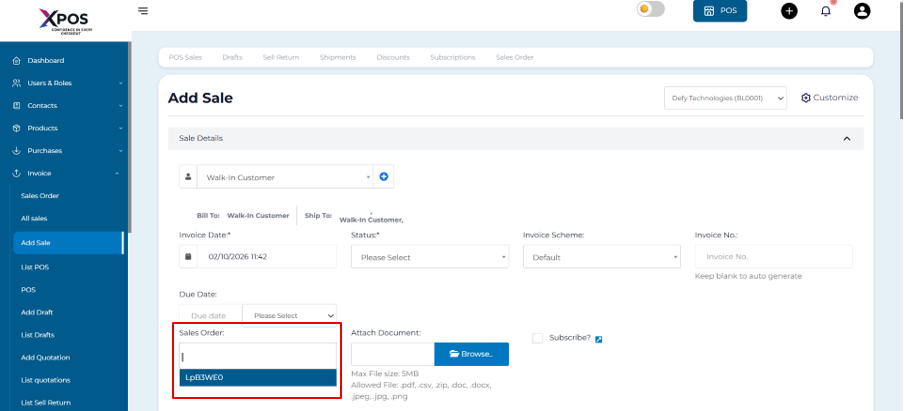
Open the Sales Order dropdown.
-
Select the approved sales order.
-
The system will automatically load:
- Products
- Prices
- Taxes
- Discounts
-
Adjust product quantities if needed.
-
Complete and save the sale.