
Subscriptions
Subscriptions – Step-by-Step Guide
Step 1: Enable the Subscriptions Feature
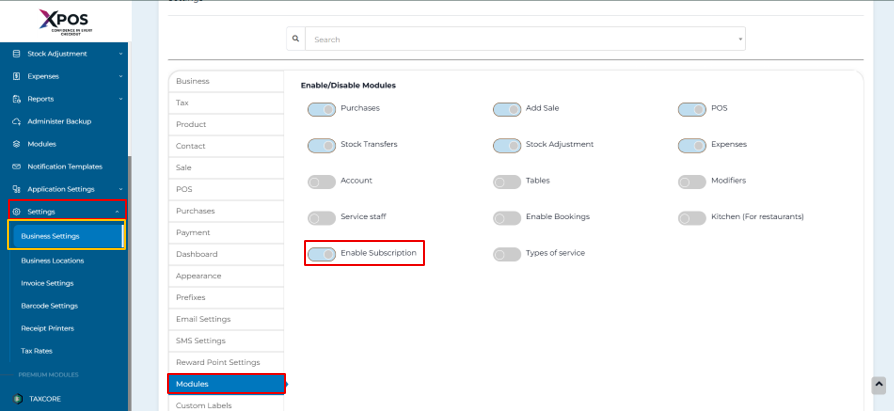
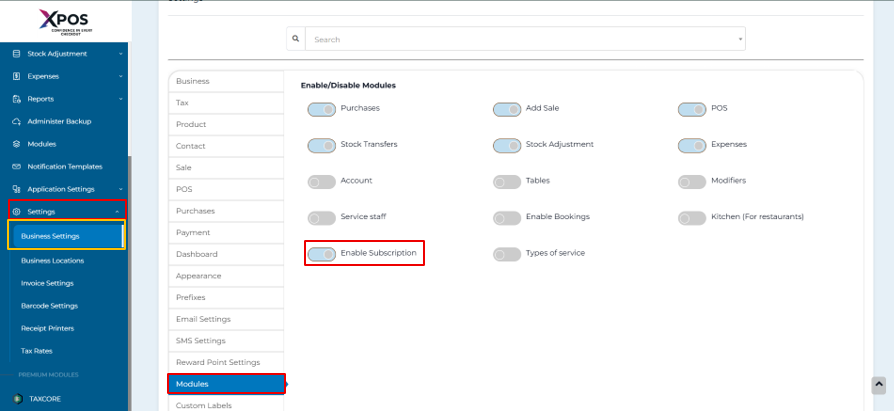
- Go to Setting → Business Setting → Modules.

Check the option Enable Subscriptions.
Click Upload Setting.

Step 2: Create a Subscription from POS or Sales Screen
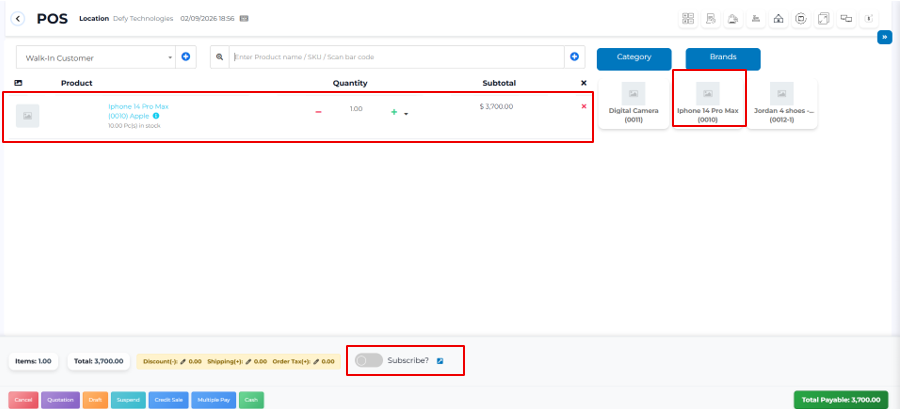
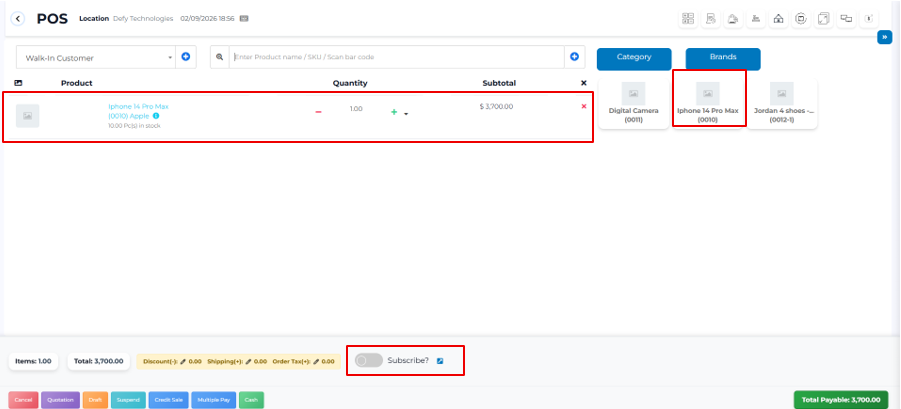
- Go to Invoice and open POS or Sales Screen
- Add products to the sale as usual.
- Select the Subscribe? checkbox.
Step 3: View and Manage Subscriptions
- Go to Invoice → List POS → Subscriptions.
- View the list of all subscriptions.
- Use the available options to start or stop a subscription as required.

Step 4: Automatic Invoice Generation & Notifications
-
The system automatically generates subscription invoices based on the set frequency.
-
When an invoice is created:
- A notification is sent to the Administrator.
- A notification is sent to the Salesperson.