
Expenses Category
How to Manage Expense Categories
Expense categories help you organize and track different types of expenses efficiently.
Steps to View and Manage Expense Categories
Step 1: Open Accounting
- Go to the Dashboard
- Click Expense Category from the sidebar menu
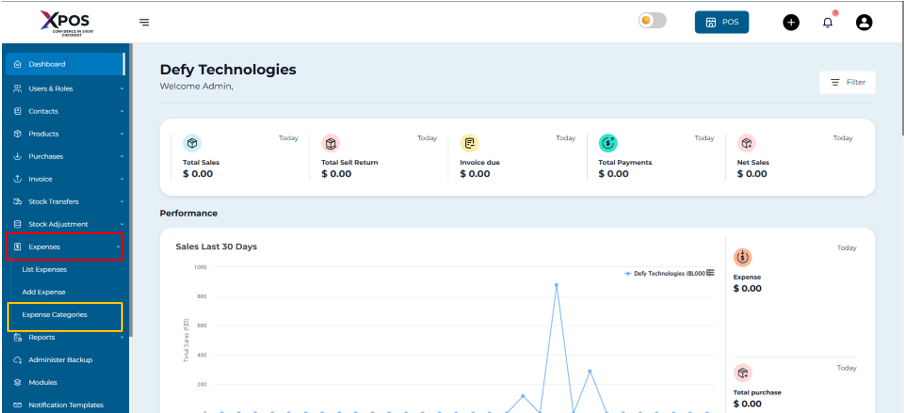
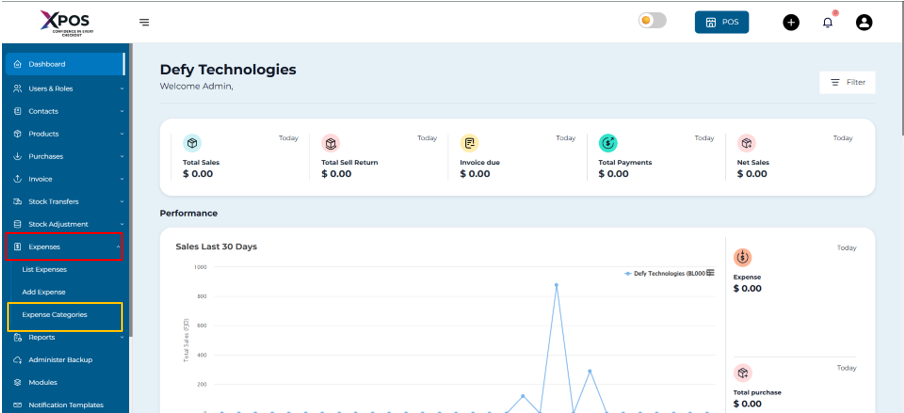
Step 2: Open Expenses
- Select Expenses to access the expense management page
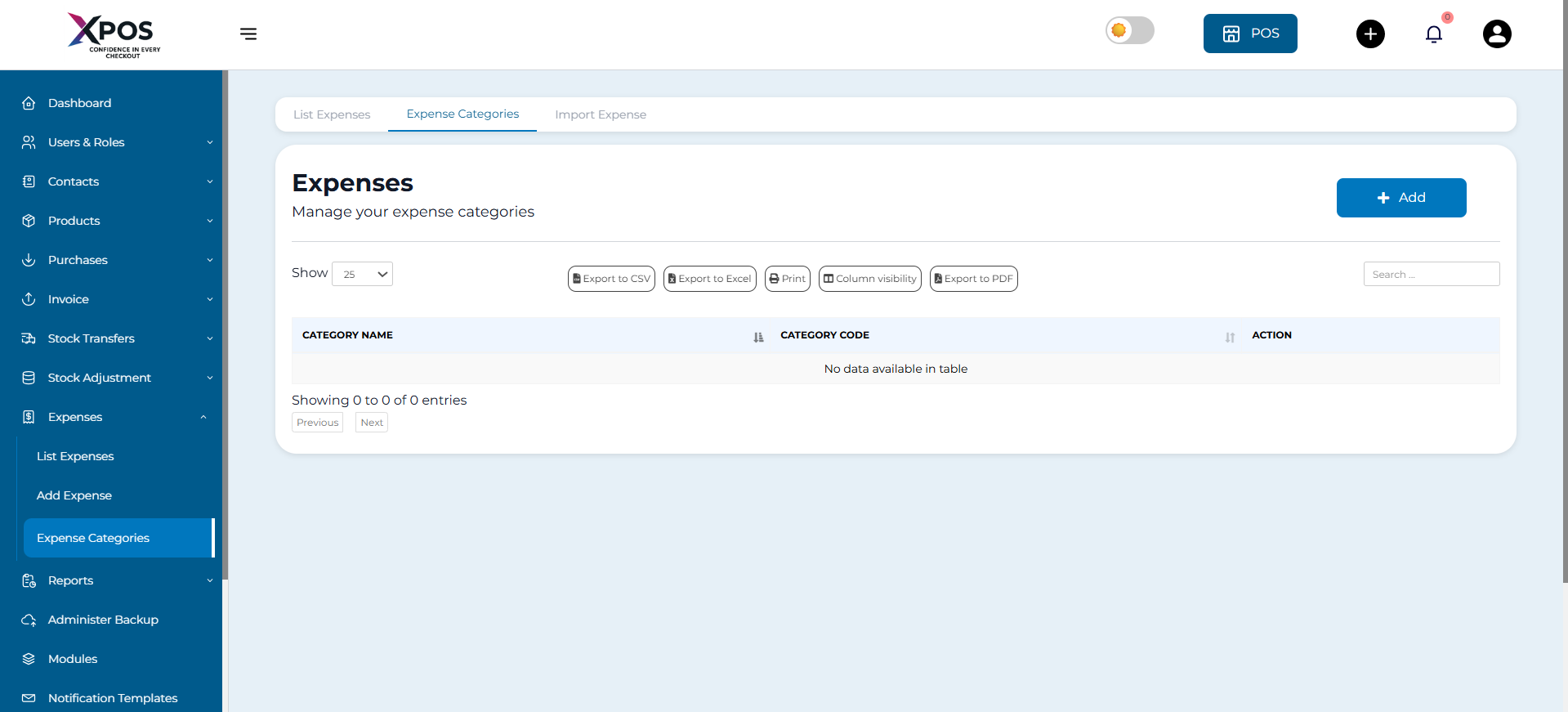
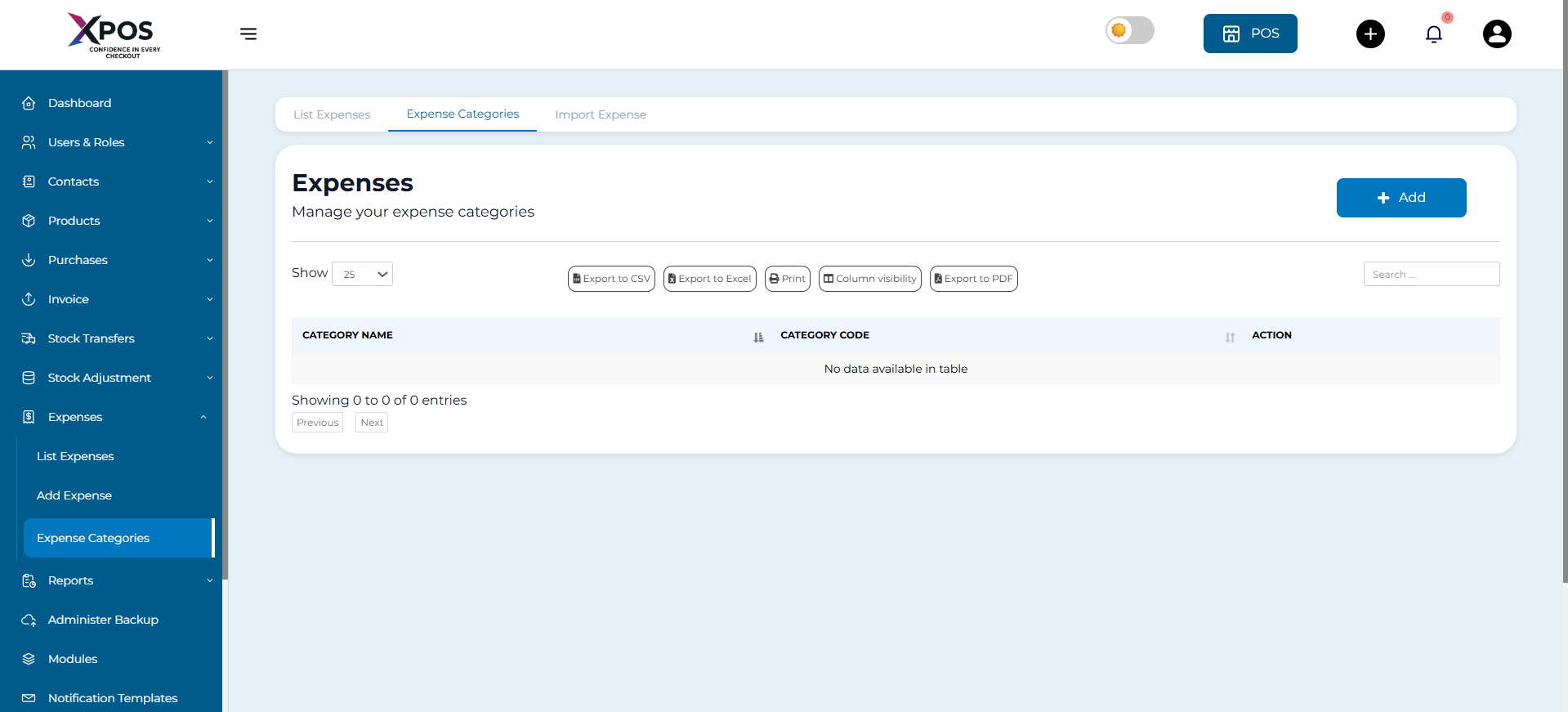
Step 3: View Existing Categories
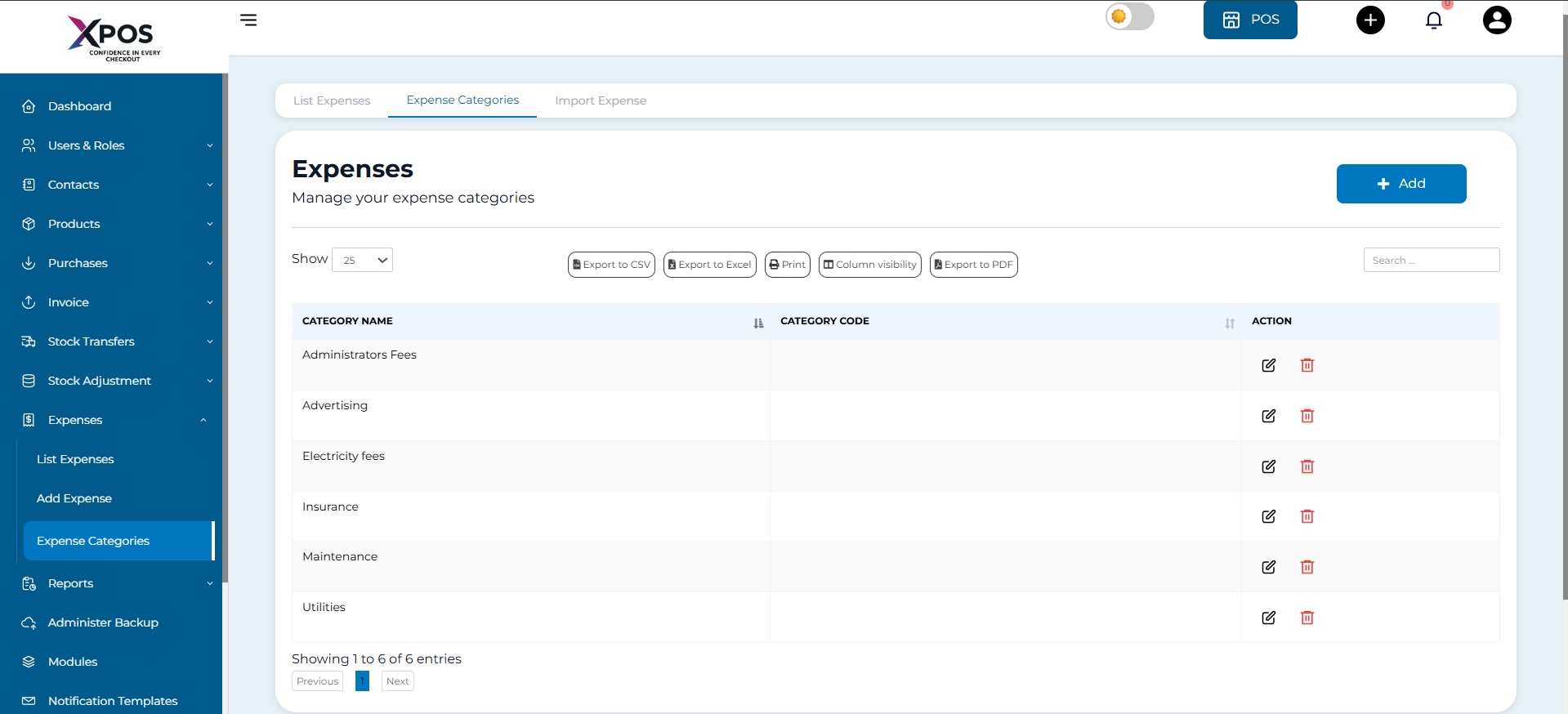
- At the top of the page, you will see your existing expense categories displayed as cards
- Each card represents one expense category
Step 4: Understand Category Options
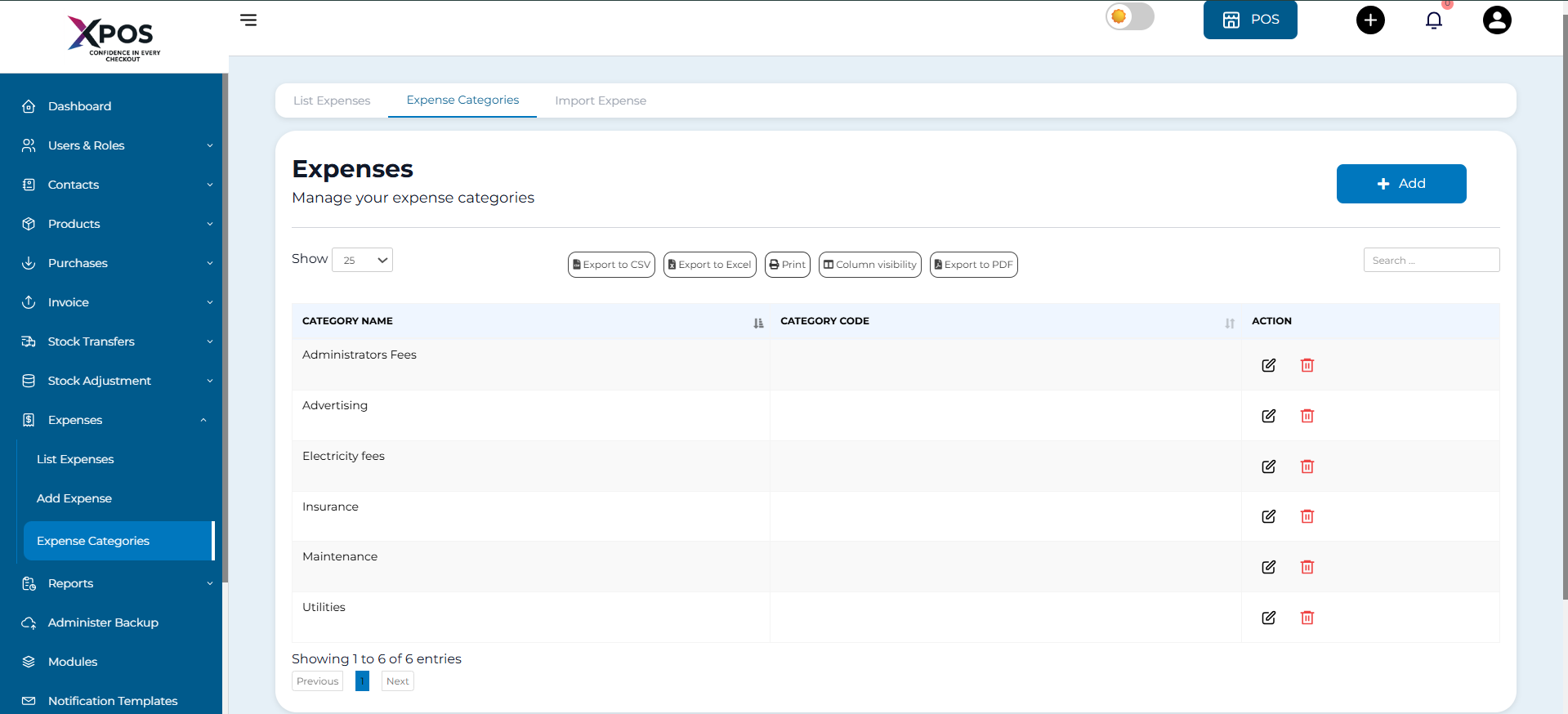
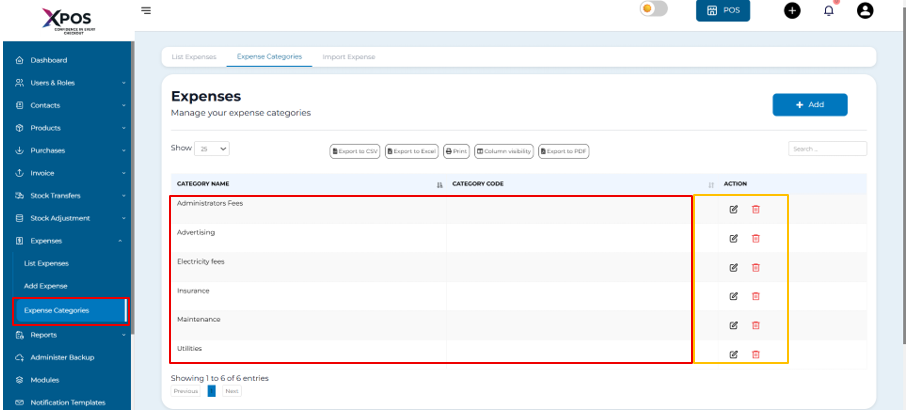
- The category name is shown on the left side.
- On the right side, you will find options to:
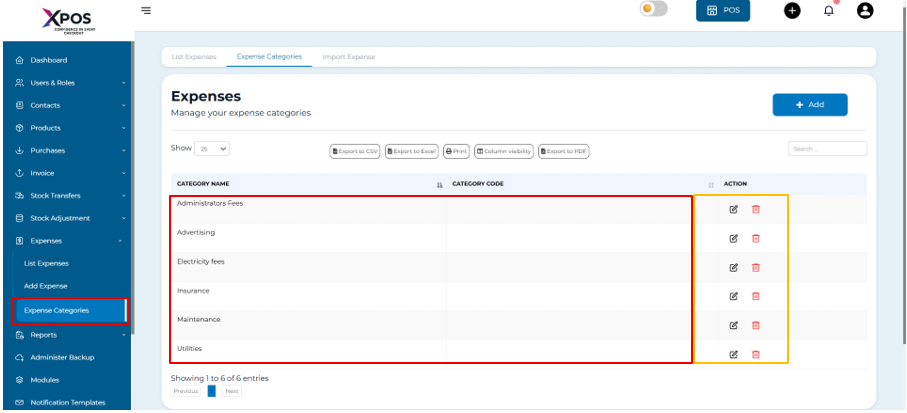
- Edit the category
- Delete the category
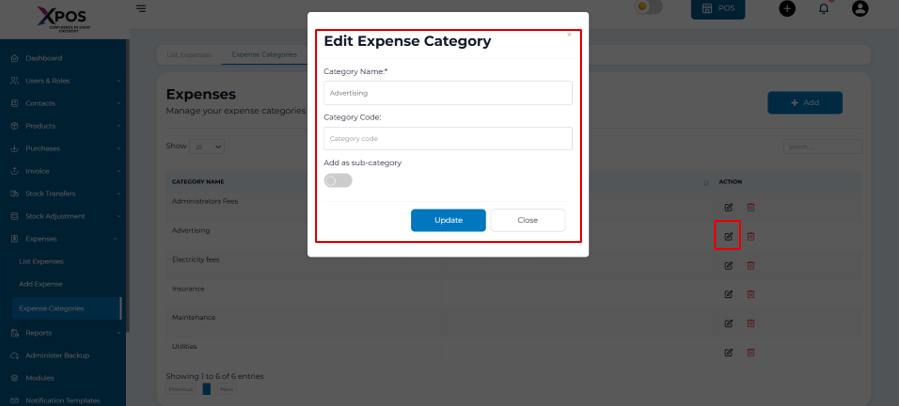
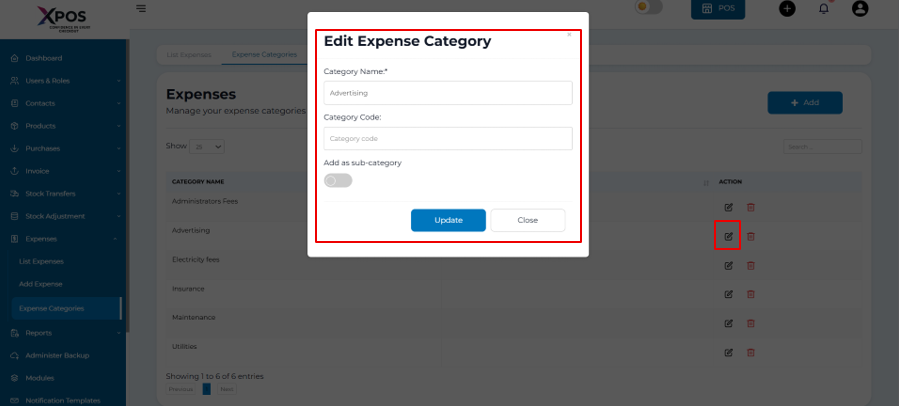
Step 5: Edit an Expense Category
- Click the Edit button next to the category
- Update the category name as needed
- Save the changes
Steps to Add a New Expense Category
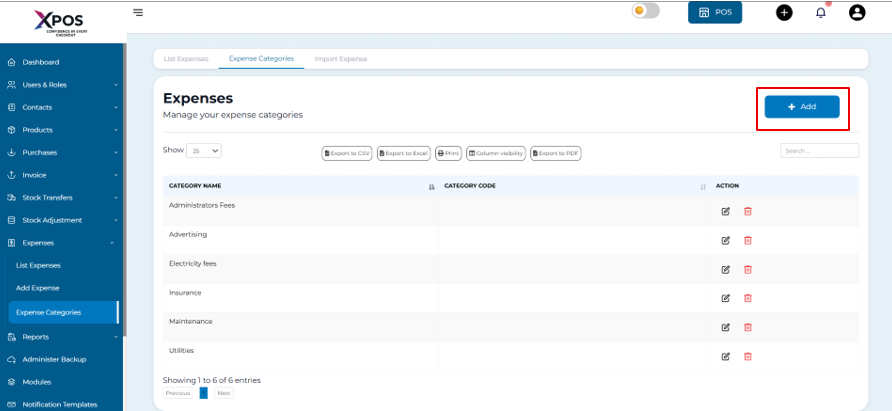
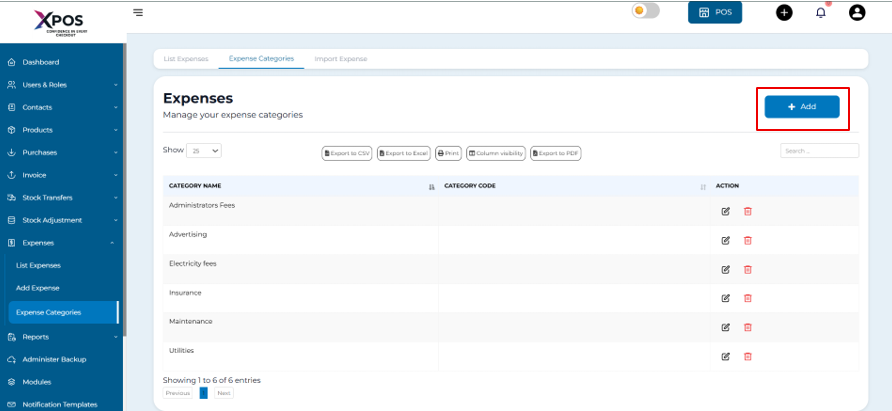
Step 6: Open Add Category Form
- Click the Add Category button
Step 7: Enter Category Details
- Type the name of the new expense category
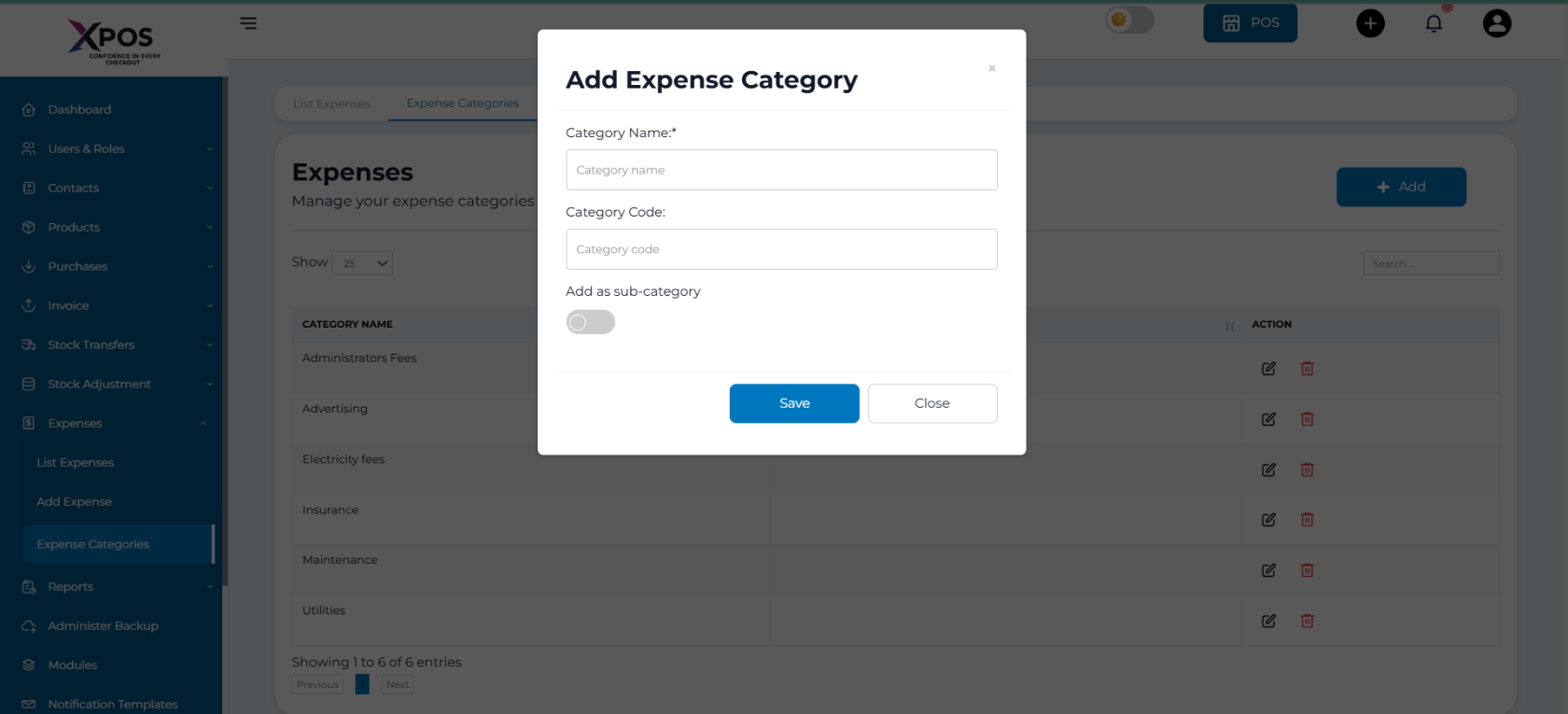
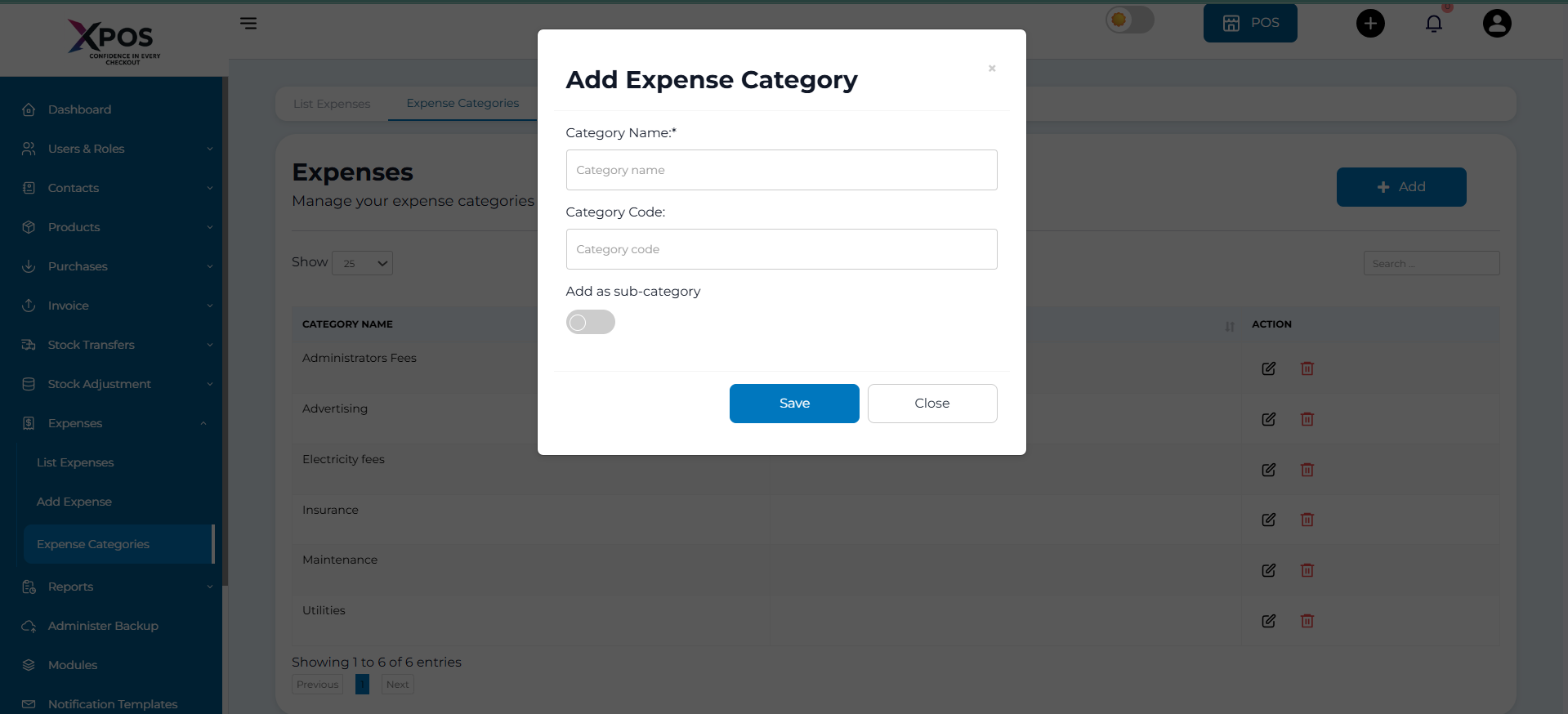
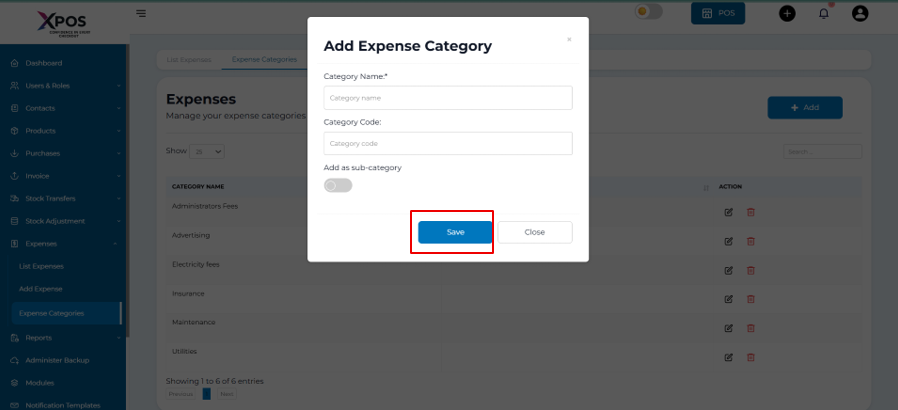
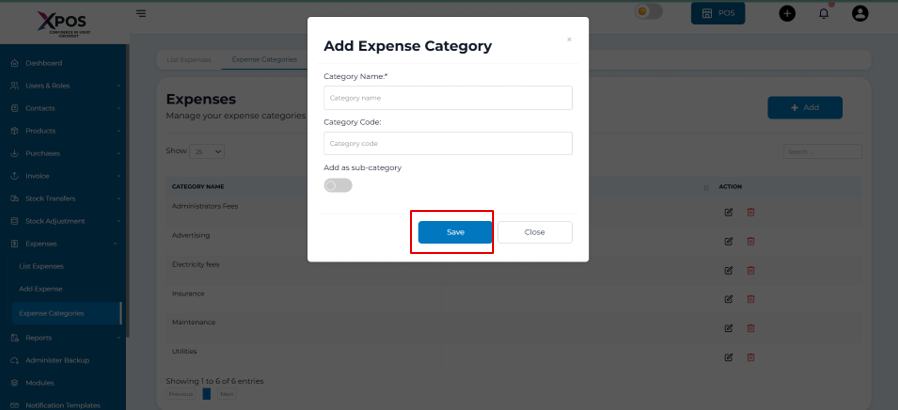
Step 8: Save the Category
- Click Save
Step 9: Confirm Category Creation
- The new category will appear in the list of expense categories