
Shipments
Adding a Delivery Person to a Shipment
You can assign a delivery person while creating a sale that includes shipment details.
Steps to Add a Delivery Person
-
Create a new sale.
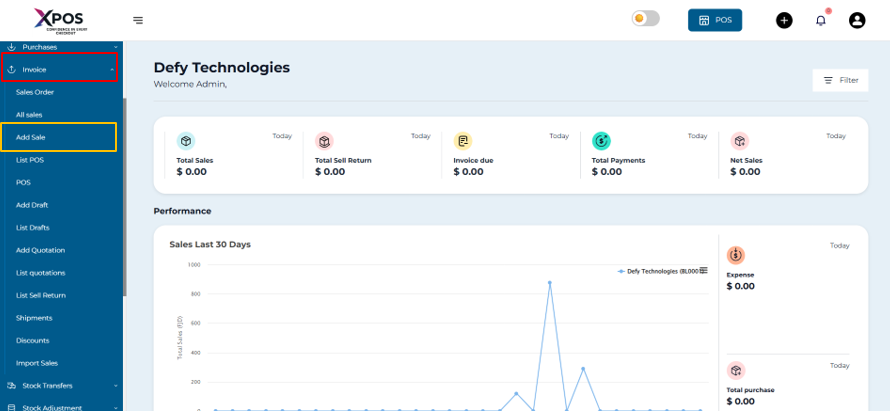
2. Enter the required shipment details.
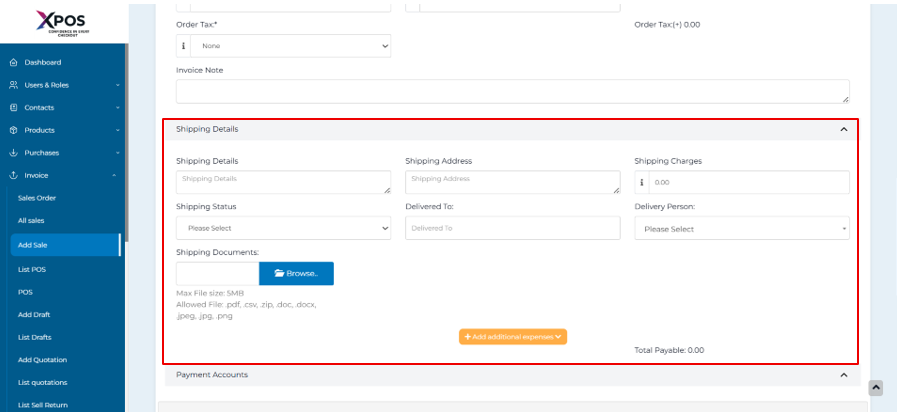
3.Select a delivery person from the available options.
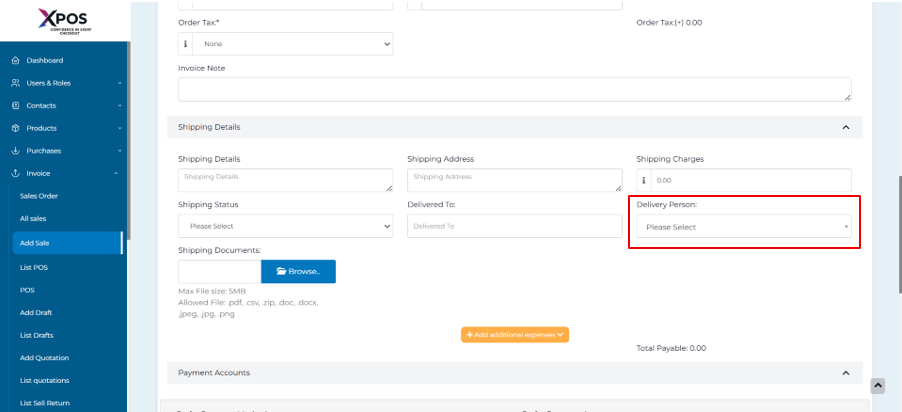
-
Complete and save the sale.
Adding a Delivery Note to a Sale
A delivery note can be generated for sales that include shipping information.
Steps to Add a Delivery Note
-
While creating a sale, make sure to add shipping details.
-
After saving the sale, go to the All Sales screen.
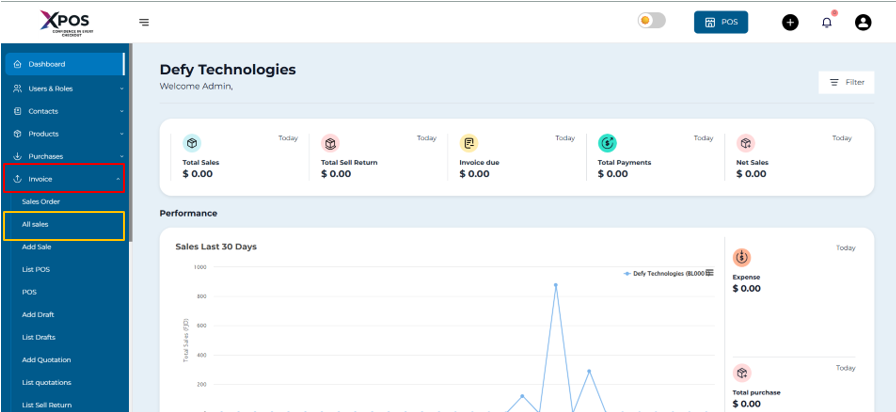
3. Locate the required sale.
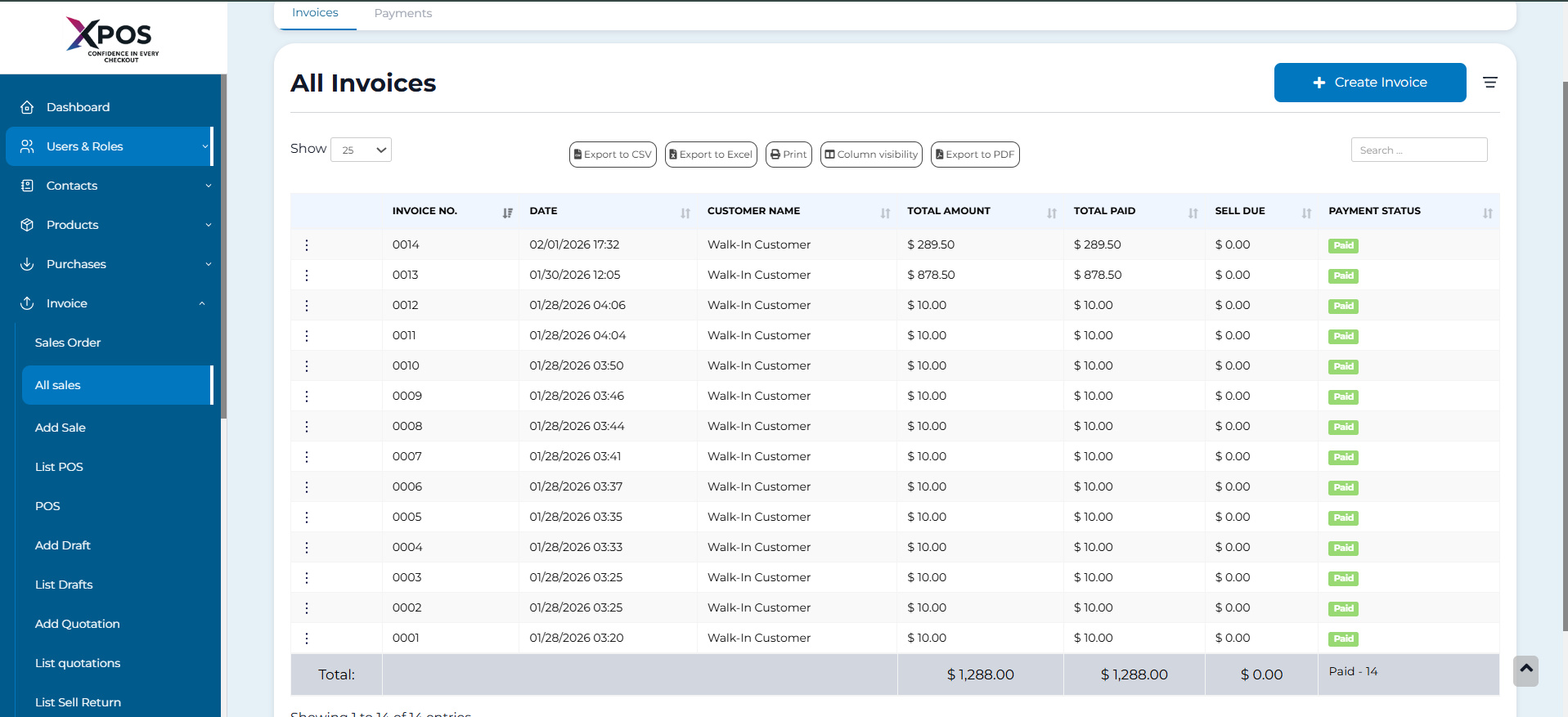
4. Click the Action dropdown for that sale.
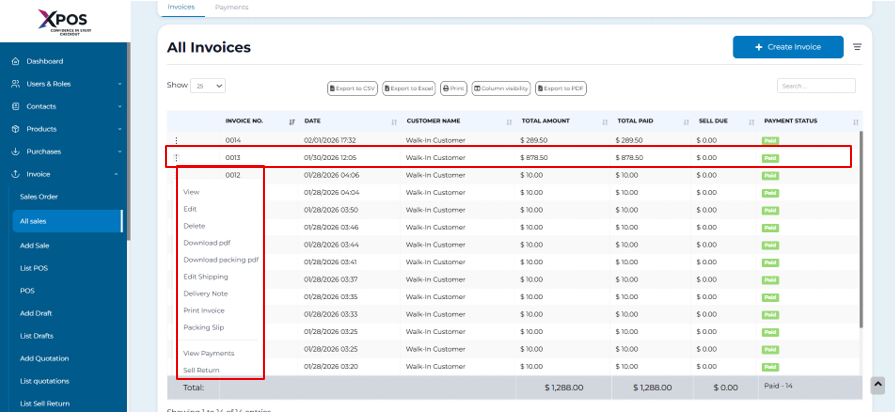
5. Select Delivery Note to generate the delivery note.
Printing the Delivery Receipt
Once the delivery note is generated, it can be printed directly.
Steps to Print the Delivery Receipt
-
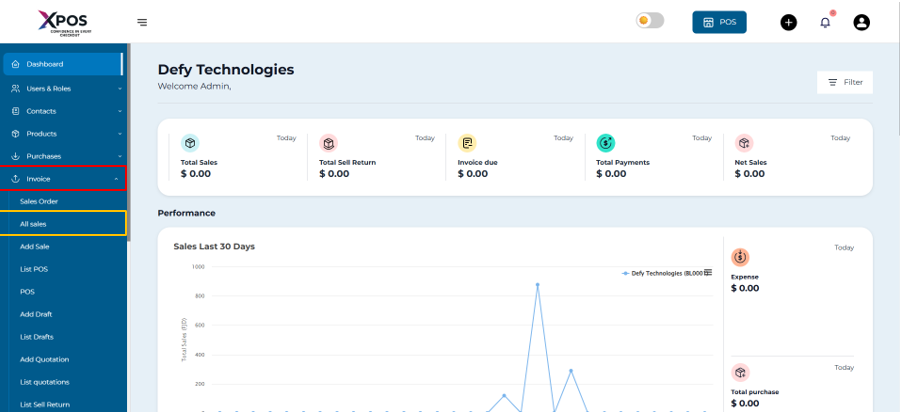
Open the All Sales screen.
2. Find the sale with delivery details.
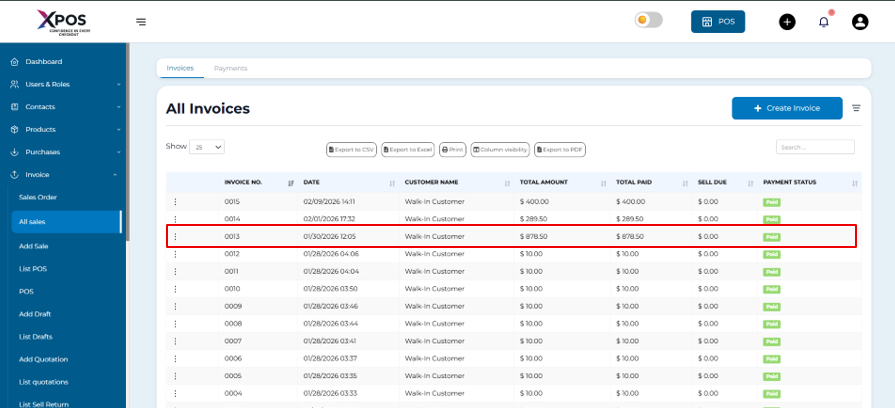
3. Click the Action dropdown.
3. Select Delivery Note.
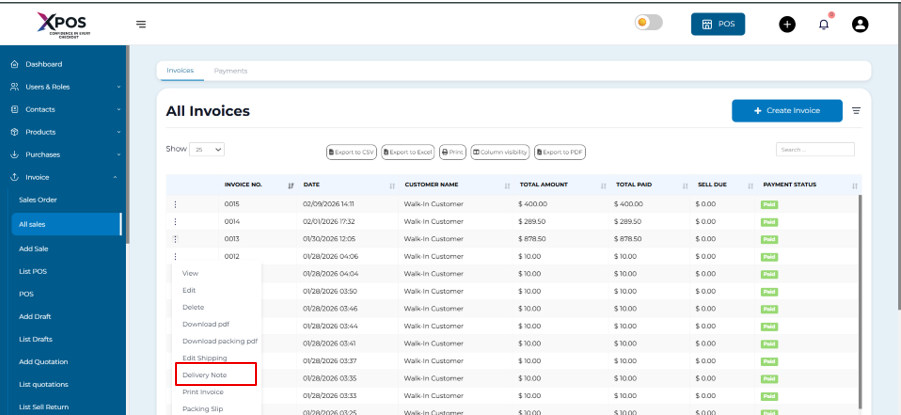
4. Print the delivery receipt from the preview screen.